

Introduction
Have you ever wondered, “Is my home computer really safe right now?” 🤔 You might be surprised to know that over 60% of cyber attacks today target home users, not big companies. Hackers know that many people don’t think much about security at home.
That’s why learning how can you protect your home computer is more important than ever. Your computer holds photos, passwords, school work, bank details, and memories. Losing them can hurt. The good news? You don’t need to be a tech expert.
In this guide, I’ll show you how can you protect your home computer using simple, friendly, and easy steps. Think of it like locking your house door small habits make a big difference.If you want more easy tech guides like this, you can explore helpful resources on Tecnish.
Why Home Computer Security Is Important
Rising Cyber Threats for Home Users
Many people believe hackers only target big companies, but that idea is outdated. Today, hackers focus on regular people because home devices are often easier to break into. Weak passwords, skipped updates, and unsafe browsing habits create perfect entry points. This growing risk makes home computer security essential for every household.
Hackers attack home systems to steal data, spy on activity, or spread malware to other users. Learning how can you protect your home computer helps you block these threats early. If you enjoy staying updated on digital risks and trends, you’ll find useful insights in the Tecnish tech news section.
Consequences of Poor Computer Security
When security is ignored, problems don’t show up instantly. They grow slowly. Your computer may become slower, freeze often, or crash without warning. Behind the scenes, hackers may already be stealing your data.
Poor security can lead to identity theft, financial loss, and deleted personal files. This is why knowing how to secure a home computer is not just smart it’s necessary for peace of mind.
Common Threats That Put Home Computers at Risk
Malware and Computer Viruses
Malware is harmful software that secretly enters your computer. It can track what you type, steal files, or flood your screen with ads. Many users don’t notice malware until their system becomes unstable.
Malware often spreads through unsafe downloads and fake software. This is why people search for ways to protect home computer from viruses before problems start. Reading practical tech blogs like those on Tecnish tech blogs can help you stay informed.
Ransomware Attacks
Ransomware locks your files and demands payment. It’s like someone locking your room and asking for money to open it. Paying does not always solve the problem.
how can you protect your home computer? The best defense is preparation. Keeping backups is one of the most effective ransomware prevention tips for home users who want control over their data.
Phishing Scams and Fake Emails
Phishing emails look real but are fake. They pretend to be banks, schools, or delivery services. One click can expose your passwords.
Understanding phishing email scams helps you avoid these traps and protect your identity.
Malicious Links and Attachments
Unknown links and email attachments can be extremely dangerous, as a single click may install malware, spyware, or ransomware on your computer. Hackers often disguise these files to appear legitimate, making it easy to fall for the trap. Always verify the sender, check URLs carefully, and avoid opening attachments from unknown or unexpected sources. Being cautious with links and attachments is a key step in maintaining home computer security and preventing potential infections.
Create Strong Passwords to Protect Your Computer
Why Weak Passwords Are a Major Risk
Using strong password is the perfect answer of how can you protect your home computer?
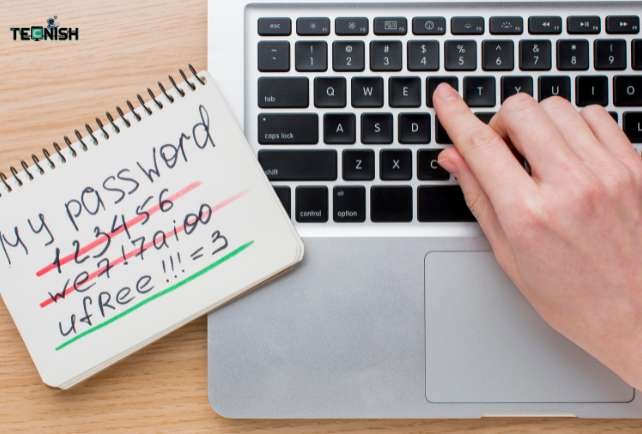
Weak passwords are easy targets. Hackers use tools that guess thousands of passwords in seconds. This puts personal computer security at serious risk.
Reusing passwords across sites makes things worse. If one site is hacked, attackers try the same password everywhere.
Best Practices for Strong Password Creation
Strong passwords should be long, unique, and hard to guess. Avoid names, birthdays, or simple patterns.
Using unique passwords for each account is a core rule when learning how can you protect your home computer properly.
Using Password Managers Safely
Password managers help you store all your passwords securely in one place while also generating strong, unique passwords for each account. This reduces the mental burden of remembering multiple credentials and prevents the reuse of weak passwords across different sites. Using a password manager correctly can significantly improve your online safety, protect your accounts from hacking attempts, and is an essential step in maintaining strong home computer security.
Enable Two-Factor Authentication (2FA)
What Is Two-Factor Authentication?
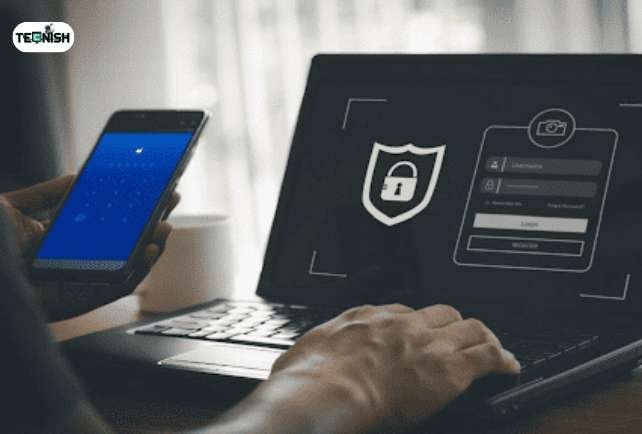
Two-factor authentication adds an extra safety layer. After entering your password, you confirm your identity with a code sent to your phone.
This small step greatly improves computer security for home users.
Where You Should Enable 2FA First
When setting up two-factor authentication (2FA), start with your most critical accounts, such as email, cloud storage, and banking apps. These accounts often contain sensitive personal information and are prime targets for hackers attempting identity theft or financial fraud. how can you protect your home computer? Enabling 2FA adds an extra layer of protection by requiring a second verification step, such as a code from your phone, in addition to your password. Prioritizing these accounts helps secure your most valuable data and strengthens your overall home computer security.
Keep Your Operating System and Software Updated
Why Software Updates Matter
Updates fix security flaws that hackers already know about. Skipping updates leaves doors open for attacks.
Regular updates are one of the easiest ways to prevent hacking on home computer systems.
Risks of Using Outdated Software
Old software has known weaknesses. Hackers exploit them quickly, especially on home devices.
Enable Automatic Updates
Turning on automatic updates for your operating system, software, and security tools ensures that your computer is always protected against the latest threats without requiring extra effort. This is especially useful for busy home users who may forget to manually check for updates. Regular updates patch security vulnerabilities, fix bugs, and improve system stability, making automatic updates a simple yet powerful step in maintaining how can you protect your home computer.
Install Antivirus and Anti-Malware Software
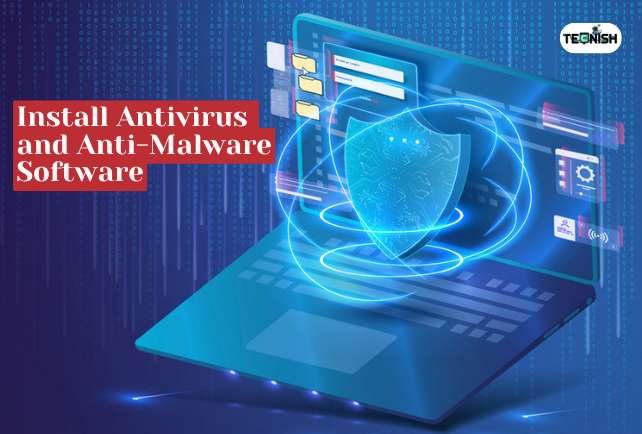
Difference Between Antivirus and Anti-Malware
Antivirus protects against known threats, while anti-malware targets newer attacks. Together, they provide strong malware protection for PC systems.
Using both tools creates layered defense. this is how can you protect your home computer.
Choosing the Right Security Software
Free security tools can provide basic protection, but paid options often offer advanced features such as real-time scanning, ransomware protection, and secure browsing. When selecting antivirus software for home use, consider your specific needs, the number of devices to protect, and the software’s reputation for detecting threats. Choosing reliable security software ensures your home computer remains safe from viruses, malware, and other cyberattacks.
Real-Time Protection Importance
Real-time protection is a critical feature that continuously scans your computer for threats as they appear. It acts like a constant security guard, blocking malware, ransomware, and other attacks instantly before they can harm your system. Enabling real-time scanning ensures your home computer is proactively protected, reducing the risk of infections and maintaining overall system security.
Secure Your Home Internet and Wi-Fi Network
Protect Your Wi-Fi Router
Changing default router passwords and enabling encryption helps secure home Wi-Fi network connections. This protects every device in your home.
Router security is often overlooked but very important.
Router Firmware Updates
Regularly updating your router’s firmware helps fix hidden security flaws that could be exploited by hackers. Many cyberattacks begin at the router level, targeting vulnerabilities to gain access to your home network. Keeping firmware up to date ensures your devices are better protected and reduces the risk of unauthorized access.
Avoid Unsafe Public Wi-Fi Networks
Public Wi-Fi networks are often unsecured and can expose your data to hackers. Avoid performing sensitive tasks like online banking, shopping, or accessing personal accounts on open networks. Using a secure VPN or waiting until you’re on a trusted network can help keep your information safe while browsing outside your home.
Practice Safe Browsing and Email Habits
Identify Unsafe Websites
Unsafe sites often show pop-ups, redirects, and fake warnings. Leaving immediately is the safest option.
These habits support healthy safe browsing practices every day.
Email Safety Best Practices
Practicing good email safety is essential to avoid malware infections, scams, and data theft. You should never open attachments or click links from unknown senders, as they may contain harmful files or lead to fake websites. Even emails that appear to come from trusted companies or contacts can be cleverly forged. how can you protect your home computer? Always check the sender’s address carefully, look for spelling or formatting errors, and be cautious with urgent messages asking for personal information or immediate action.
Social Engineering Awareness
Social engineering attacks rely on manipulating human emotions such as fear, urgency, curiosity, or trust. Hackers often create pressure-filled situations to make people act without thinking, such as fake warnings about account problems or limited-time offers. Staying calm and taking a moment to verify information can prevent costly mistakes. Developing awareness of these tactics helps you recognize suspicious behavior and avoid being tricked into sharing sensitive information or granting unauthorized access.
Back Up Your Computer Data Regularly
Why Data Backups Are Essential
Backups protect files from crashes, mistakes, and attacks. This is the foundation of data backup for home computer safety.
With backups, even ransomware loses its power.
Types of Backups
Local backups use external drives. Cloud backups store data online. Using both gives the best protection. If you ever face system issues, guides like restarting your laptop safely can be helpful.
Recommended Backup Frequency
Regular data backups are essential for protecting important files from system failures, malware, or accidental deletion. For most home users, weekly backups provide a good balance between safety and convenience, ensuring recent data can be restored if something goes wrong. Maintaining consistent backups is a key step in how can you protect your home computer, especially against threats like ransomware that can permanently lock or destroy files without warning.
Manage User Accounts and Access Control
Use Standard Accounts Instead of Admin
Using a standard user account for daily activities is a simple way to limit the damage malware can do. Admin accounts allow deep changes to your system, including installing software or modifying system settings. By using a standard account, you reduce the risk that malicious programs can make major changes without your knowledge, keeping your system safer from attacks.
Create Separate Accounts for Family Members
Creating separate accounts for each family member improves both safety and usability. Individual accounts reduce the risk of accidental changes, prevent one user’s mistakes from affecting the entire system, and make it easier to apply personalized parental controls or security settings. Shared systems become more organized, secure, and easier to monitor when every user has their own account with proper permissions.
Protect Your Computer from Physical Threats
Prevent Unauthorized Physical Access
Protecting your home computer from physical access is just as important as digital security. Using strong passwords, PINs, or biometric locks ensures that unauthorized people cannot log in directly, even if they have the device in hand. Additionally, enabling automatic screen locks after periods of inactivity adds another layer of protection, preventing casual access by visitors, family members, or anyone who might temporarily use your computer without permission. These measures help safeguard sensitive data and maintain overall system security.
Laptop Safety at Home and While Traveling
Never leave laptops unattended. Physical theft is still a major risk. If hardware issues appear, troubleshooting guides like fixing laptop screen problems can save time.
Download Software Safely
Most of the new user when they buy new computer. Then need some common daily use software. They just see the download links and click without wasting time. But is it risky. how can you protect your home computer? Download software safely.
Trusted Sources for Software Downloads
Always download software from official websites or reputable sources to minimize the risk of malware infections. Avoid downloading from unknown or unofficial sites, as these often bundle harmful programs with legitimate-looking software. If you want trusted source here 10 Best Software Download Websitesfor you. Using trusted sources not only protects your system from viruses but also ensures you receive the latest updates and security patches, keeping your home computer safer and more reliable.
Risks of Pirated and Cracked Software
Using pirated or cracked software may seem tempting, but it often comes bundled with hidden malware or malicious code. Installing such software can compromise your system, steal personal data, or even allow hackers to gain control of your computer. Avoiding illegal software is a key step to protect PC from malware and prevent potential system damage, keeping your home computer safe and secure.
Use Firewalls for Extra Protection
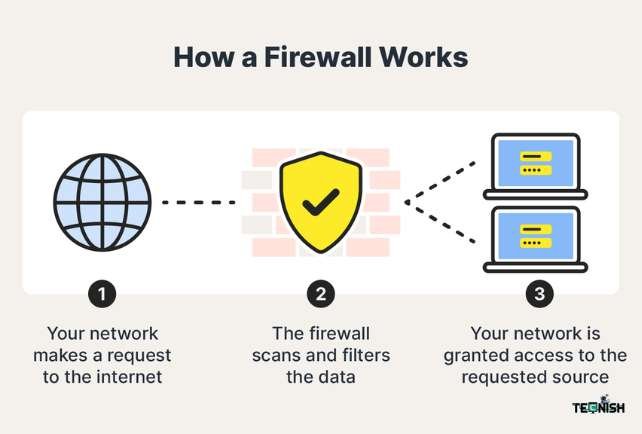
What a Firewall Does
A firewall controls incoming and outgoing traffic. It blocks unwanted access and adds computer firewall protection to your system.
Firewalls act like a digital wall around your computer.
Built-in vs Router Firewalls
How can you protect your home computer? Using both your computer’s built-in firewall and your router’s firewall together provides stronger, layered computer firewall protection against cyber threats. The built-in firewall safeguards your device from unauthorized software and incoming connections, while the router firewall adds an extra barrier at the network level. Combining both helps block potential attacks before they reach your system, reducing the risk of malware infections and improving overall home computer security.
Protect Children and Family Members on Shared Computers
Parental Controls and Content Filters
Parental controls and content filters play an important role in keeping children safe online and are a key part of understanding how can you protect your home computer. These tools help block unsafe or inappropriate websites, restrict downloads, and limit access to harmful online content. They also allow parents to monitor usage, set screen-time limits, and reduce the risk of kids accidentally clicking malicious links or installing unwanted software. Using parental controls not only creates a safer browsing environment for children but also strengthens overall home computer security by minimizing risky online behavior.
Teaching Safe Online Behavior
How can you protect your home computer? Teaching children safe habits builds long-term security awareness. You can explore more family-friendly guides in thecomputers and laptops category.
Signs Your Home Computer May Be Infected
Performance and System Behavior Changes
Unusual performance and system behavior changes are often early warning signs of deeper computer issues, including malware infections or unauthorized background activity. If your home computer suddenly starts taking longer to boot, frequently freezes, or crashes without warning, it may be struggling with hidden processes running in the background. These problems can reduce productivity, disrupt normal use, and indicate that your system resources are being misused. Paying attention to these changes can help you identify potential security threats early and take action before the problem becomes more serious.
Browser and Security Warnings
Frequent pop-ups, unexpected website redirects, and fake security alerts are common signs of computer virus infections. These warnings may appear while browsing normal websites or even when the browser is idle, often pushing users to click suspicious links or download harmful software. In many cases, the messages are designed to create panic and trick users into sharing personal information or installing more malware. Paying attention to these browser and security warnings can help you detect a compromised system early and take action before further damage occurs.
What to Do If Your Home Computer Gets Hacked

If your home computer gets hacked, it often means earlier warning signals were missed, such as unusual pop-ups, slow performance, or unauthorized logins common signs of computer virus infections. Hackers usually gain access through malware, phishing emails, or unsafe downloads. Understanding how quickly a system can be compromised highlights why learning how can you protect your home computer is essential for every home user. Acting fast can reduce data loss and stop further damage.
Immediate Steps to Take
The first step is to disconnect your computer from the internet immediately to block the attacker’s access. This is a critical move to prevent hacking on home computer systems from getting worse. After disconnecting, run a full scan using updated antivirus or anti-malware software to identify and remove threats. Completing this step early helps contain the attack and protects other devices on your home network.
Recovering and Securing Your System
Once the threat is removed, change all important passwords from a secure device and restore files from a clean backup if needed. Update your operating system and applications to fix security vulnerabilities. Reviewing your security habits such as avoiding suspicious links and keeping protection tools active is a key part of how can you protect your home computer from future attacks and reduce the chances of being hacked again.
Conclusion
Protecting your computer doesn’t require advanced skills. Small, consistent actions make a big difference. Learning how can you protect your home computer keeps your data safe, your system healthy, and your stress low. Security is a daily habit, not a one-time task. Start now, stay aware, and build strong digital habits that last.
Frequently Asked Questions (FAQs)
- How can I protect my home computer from viruses?
Install antivirus software, keep systems updated, and avoid unsafe links. - Do I need antivirus software for a home computer?
Yes. It provides essential protection against common threats. - How often should I update my computer?
Enable automatic updates for the best results. - Is public Wi-Fi safe for home computer use?
Only for basic browsing. Avoid sensitive logins. - What is the easiest way to secure a home computer?
Strong passwords, regular updates, and basic security tools.
If you find “how can you protect your home computer’’ insightful, then don’t forget to leave a comment, and for more amazing tech news and blogs visit Tecnish.