
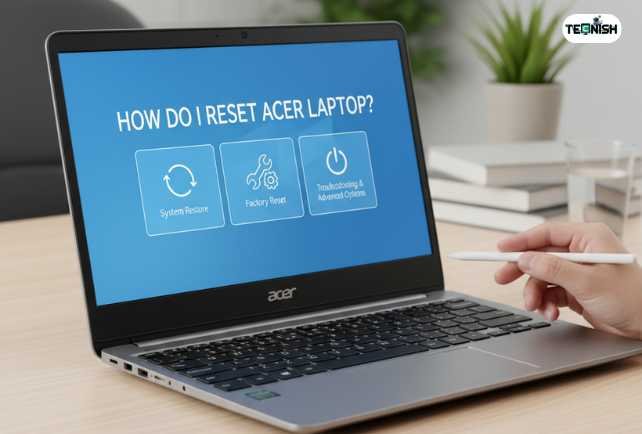

Hey there, friend! So your Acer laptop’s acting a little weird, huh? Maybe it’s running slower than usual, freezing when you open too many tabs, or showing errors that make no sense. Don’t panic, it happens to almost everyone! The good news is that if you’ve been wondering how do I reset Acer laptop, it’s actually really simple once you know what to do.
Resetting your laptop is like giving it a fresh start. It clears out junk files, removes broken software, and fixes system problems that slow things down. You might want to reset if your system keeps crashing, if you forgot your password, or even if you’re planning to sell your device and want to erase personal data safely.
Think of it like hitting a refresh button your laptop forgets the messy stuff and runs like it’s brand new again. In this guide, we’ll go through every easy method to reset Acer laptop to factory settings, even if you’re locked out, stuck on a screen, or using reset Acer laptop Windows 10 / Windows 11.
We’ll also explore some helpful Acer features like the Alt + F10 Acer recovery shortcut, steps to hard reset Acer laptop, and what to do when your Acer laptop is stuck resetting. By the end, you’ll know exactly how do I reset Acer laptop and have it working faster than ever without needing a tech expert.
Before You Start: Essential Things to Do Before Resetting
Before you hit that reset button, there are a few simple steps to take. These steps make sure your data stays safe and your laptop resets smoothly. If you’ve been wondering how do I reset Acer laptop properly, think of this part as getting your backpack ready before heading on an adventure you don’t want to leave anything important behind!
1. Back Up Your Files

Before anything else, back up your stuff. Move your photos, school projects, or work documents to a USB drive, external hard disk, or cloud storage like Google Drive or OneDrive. Resetting might remove files, so this step protects your memories and important work.
2. Plug in Your Laptop

Resetting takes time, sometimes 30 minutes, sometimes more. Always plug in your charger before starting. If your laptop loses power mid-reset, it could cause system errors or make your laptop get stuck during setup.
3. Write Down Your Passwords & Product Keys

You’ll need your Microsoft account login, Wi-Fi password, and maybe a few app license keys after the reset. Keep them safe so signing in again is easy later. When learning how do I reset Acer laptop the right way, it’s important to prepare these details beforehand. Having your login info and keys ready ensures a smooth reset process and helps you get your Acer laptop back up and running without any hassle.
4. Disconnect External Devices
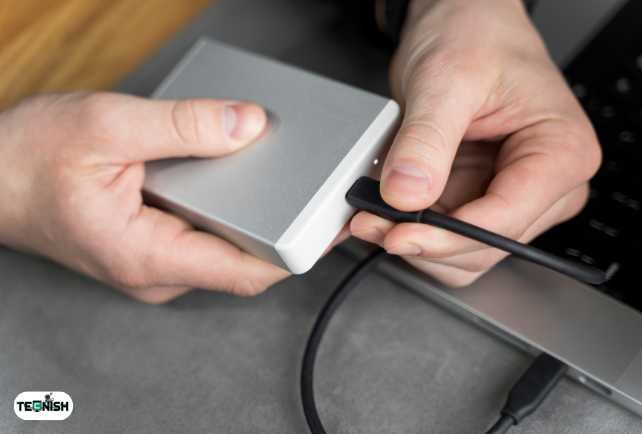
Before resetting, unplug any USB drives, SD cards, headphones, or printers. These can confuse your laptop or slow down the reset process.
Once you’ve got everything ready, files backed up, laptop charged, and accessories removed you’re all set! Let’s move on and learn how do I reset Acer laptop using Windows Settings, the easiest and safest way to start fresh.
If you enjoy simple, beginner-friendly tech guides like this one, check out more of our helpful tutorials and gadget tips on the Tecnish Tech Blogs page.
How to Reset Acer Laptop from Windows Settings (Easiest Method)
If your laptop still turns on and you can reach your desktop, this is the simplest way to reset it. You don’t need any disks or tools; everything you need is built into Windows. If you’ve been searching for how do I reset Acer laptop easily, this method is perfect it uses the built-in Windows recovery options to help you restore your system quickly and safely without extra software.
Step 1: Open Reset Settings
Click the Start Menu, choose Settings (⚙️), then go to System → Recovery. Under the “Reset this PC” section, click Get Started.
Step 2: Choose an Option
You’ll see two choices:
- Keep My Files: Removes apps and settings but keeps your personal data.
- Remove Everything: Completely erases everything for a full reset Acer laptop to factory settings experience.
If your laptop is slow or glitchy, choose Remove Everything.
Step 3: Confirm and Start Reset
Follow the on-screen instructions. Windows will ask if you want to clean the drive or just remove files. Cleaning is safer if you’re selling your laptop. When ready, click Reset and let it work its magic.
The process can take up to two hours depending on your laptop’s speed. Once it’s done, you’ll go through setup again just like when it was brand new. This is the easiest and safest way to handle reset Acer laptop .
If you’re planning to upgrade your device after this reset, our guide on the Top 6 Laptops for Remote Work in 2025 will help you find a perfect replacement.
How to Reset Acer Laptop Without Password (Locked Out Solution)
Forgot your password and can’t log in? No worries you can still reset it. Many people ask, how to reset Acer laptop without password, and the steps are surprisingly easy!
Step 1: Open Recovery Mode
Turn off your laptop. Then turn it back on, and as soon as the Acer logo appears, press Shift + F8 repeatedly. You’ll enter the Windows Recovery Environment a blue screen with several options.
Step 2: Navigate to Troubleshoot
Choose Troubleshoot → Reset this PC. You’ll again get the choice to Keep My Files or Remove Everything. Since you can’t log in, choose Remove Everything.
Step 3: Let Windows Reset
Confirm your choice, then sit back and let the process run. The reset will remove your password and reinstall Windows, giving you a clean start. If you’ve been wondering how do I reset Acer laptop completely, this step finalizes everything restoring your system to its original state and fixing most performance or login issues effortlessly.
If that doesn’t work, use the Alt + F10 Acer recovery shortcut in the next section; it works even if you can’t access your Windows account. This method is also perfect when you need to reset Acer laptop when locked out without using any recovery disk or software.
How to Factory Reset Acer Laptop Using Alt + F10 Shortcut

how do I reset Acer laptop? Every Acer laptop comes with a secret recovery feature that helps you bring your system back to life even if it won’t boot properly. This is known as the Alt + F10 Acer recovery shortcut, and it’s a lifesaver when nothing else works.
Step 1: Turn On Recovery Mode
Shut down your laptop completely. Turn it on, and as soon as you see the Acer logo, press and hold Alt + F10 repeatedly. This opens recovery mode Acer laptop, a special menu that lets you repair or reset your system.
Step 2: Choose Factory Reset
Select Restore Factory Settings or Completely Clean Drive depending on how deep you want to clean your system.
Step 3: Wait and Restart
Once you confirm, your laptop will erase everything and reinstall Windows automatically. When it restarts, it’ll be just like the day you bought it.
If this doesn’t work, check that D2D (disk-to-disk) recovery is enabled in your BIOS. If it’s not, you can try creating a USB recovery drive or use an Acer Care Center reset from within Windows.
Want to read more computer and laptop maintenance tips? Visit our Computers & Laptops category for useful how-to guides.
How to Hard Reset Acer Laptop (Fix Boot or Power Problems)
Sometimes, your Acer laptop might not turn on or keeps freezing before booting. When that happens, a hard reset Acer laptop can fix the issue.
Step 1: Disconnect Power and Battery
Unplug the charger and remove the battery if possible. Also, unplug all accessories and external devices. This step is important when preparing for how do I reset Acer laptop safely, as it prevents power interruptions or hardware conflicts during the reset process. Taking a few moments to disconnect everything ensures your Acer laptop resets smoothly without any risk of damage.
Step 2: Drain Residual Power
Press and hold the Power button for 30 seconds. This releases leftover electrical charge that can cause startup problems.
Step 3: Reconnect and Start
Plug the power back in (without the battery, if removable) and press Power again. This simple step often helps fix Acer laptop not turning on problems.
If your laptop still won’t start, check out some expert hardware repair stories and latest tips on our Tech News page.
How to Reinstall Windows on Acer Laptop
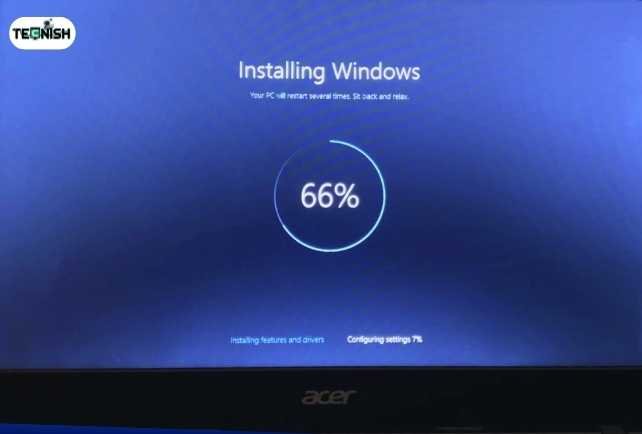
If resetting doesn’t solve your problem, the next best solution is a full Windows reinstallation. Knowing how to reinstall Windows on Acer laptop gives you a completely fresh system.
You can download the Windows Media Creation Tool from Microsoft, create a bootable USB, and reinstall Windows step-by-step. Once done, reinstall drivers, connect to Wi-Fi, and activate Windows with your product key.
After reinstalling, make sure to keep your system clean and secure. For extra protection and ideas to maintain your tech gear, read our helpful comparison guide on the best waterproof laptop bags.
What to Do After Resetting Your Acer Laptop
Congrats! Your laptop’s fresh and ready. But before you jump back into work or gaming, there are a few smart things to do after your reset.
- Reinstall drivers and software you need.
- Update Windows and security patches.
- Restore your backed-up files.
- Adjust power and performance settings to optimize Acer laptop after factory reset for smoother use.
A freshly reset laptop deserves a bit of care, think of it like polishing your new gadget after a tune-up.
Conclusion – Get Your Acer Laptop Running Like New Again
And there you have it! You now know exactly how do I reset Acer laptop the right way whether through Windows settings, using the Alt + F10 shortcut, or even a full reinstall. Each method gives you a clean slate, faster performance, and fewer system errors.
Resetting might sound scary at first, but it’s really just your laptop’s way of taking a deep breath and starting over. Keep this guide bookmarked, and your Acer will always run like new.
FAQs
- How do I completely reset my Acer laptop to factory settings?
A concise, step-by-step answer covering “Settings” and “Alt + F10” methods, optimized for quick answers on Google. - Can I reset my Acer laptop without a password or recovery disk?
Explain using Windows Recovery Mode and built-in Acer reset options targets “without password” intent. - What happens when I reset my Acer laptop? Will I lose my data?
Short answer clarifying difference between “Keep My Files” and “Remove Everything.” - How long does it take to reset an Acer laptop?
Mention average reset duration (30–60 minutes) and factors affecting it, ideal for snippet-style responses. - What should I do if my Acer laptop gets stuck during reset?
Provide actionable fixes (restart, use recovery environment, or system restore) aligns with troubleshooting intent.
If you find how do I reset Acer laptop this guide helpful, don’t forget to leave a comment. For more friendly tutorials, reviews, and step-by-step fixes, visit Tecnish your go-to place for everything tech.