
A Quick Overview
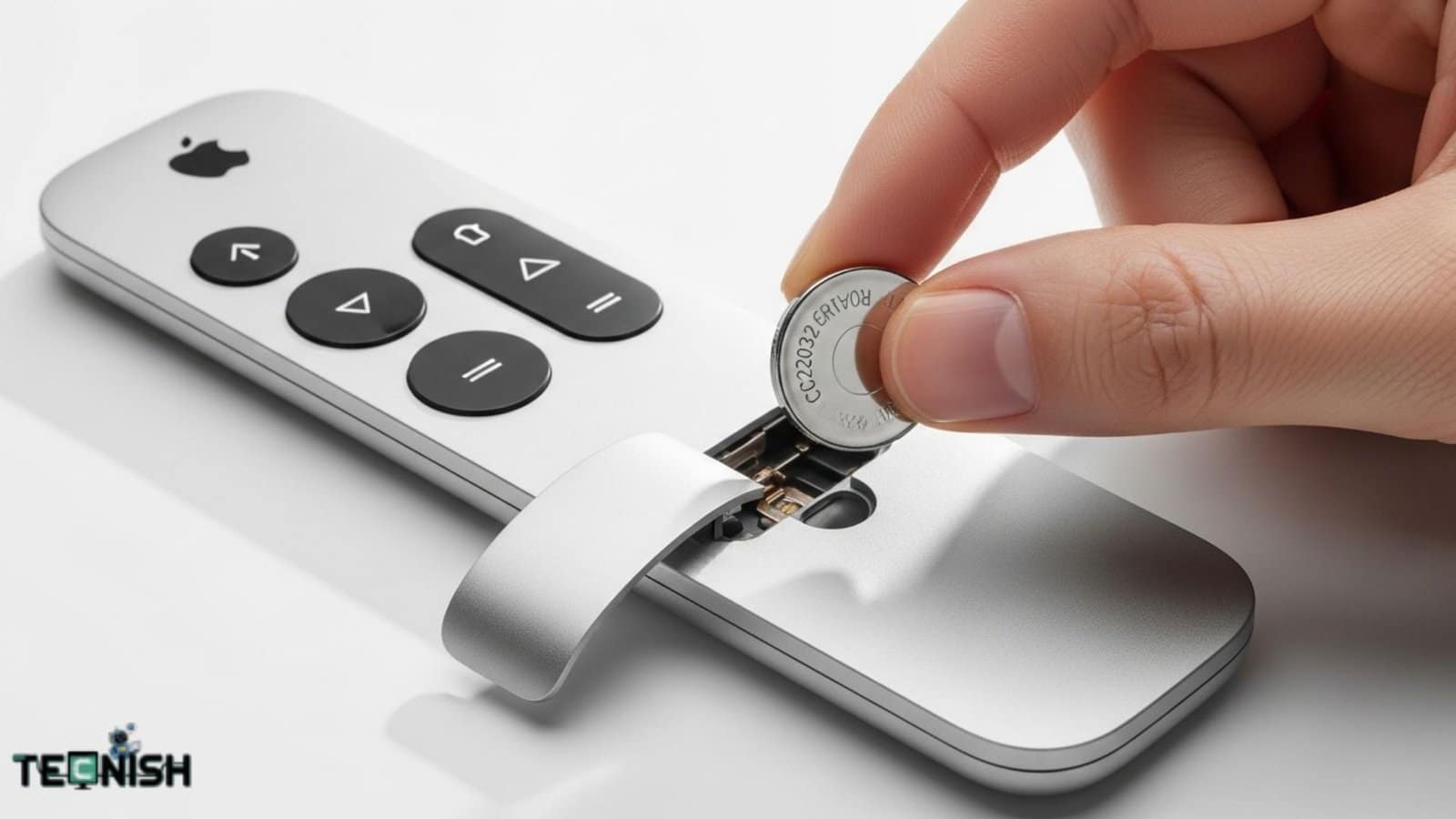
Do you know really that How to Change Battery in Apple TV Remote? If your Apple TV remote suddenly stops responding, even the most perfect movie night can fall apart in seconds. More often than not, the issue isn’t with the Apple TV itself—it’s the remote’s battery. Without power, you lose control over playback, volume, and navigation, making the entire experience frustrating.
That’s why knowing how to change the battery in an Apple TV remotes is an essential skill for every Apple TV owner. In this 2025 step-by-step guide, we’ll explain how to replace the battery in different remote models—including the older aluminum Apple Remote, the black plastic remote, and the newer Siri Remote with built-in rechargeable batteries.
You’ll also learn the right charging method, how to check battery health, and what to do if your Apple TV remote is not working due to battery issues.
Whether you’re dealing with a CR2032 coin-cell replacement or recharging via Lightning/USB-C, this article covers it all. By the end, you’ll know exactly how to change the battery in the Apple TV remote safely, quickly, and with zero guesswork.
👉 And if your evening ever feels ruined, take a moment to explore our Pink iPhone 13: Where Elegance Meets Innovation article—because technology should inspire not just convenience, but also style.
Identify Your Apple TV Remote Model
Before you can replace or recharge your Apple TV remote battery, it’s crucial to know which model you own. Why? Because each remote has a different battery system—some use a replaceable CR2032 coin cell,
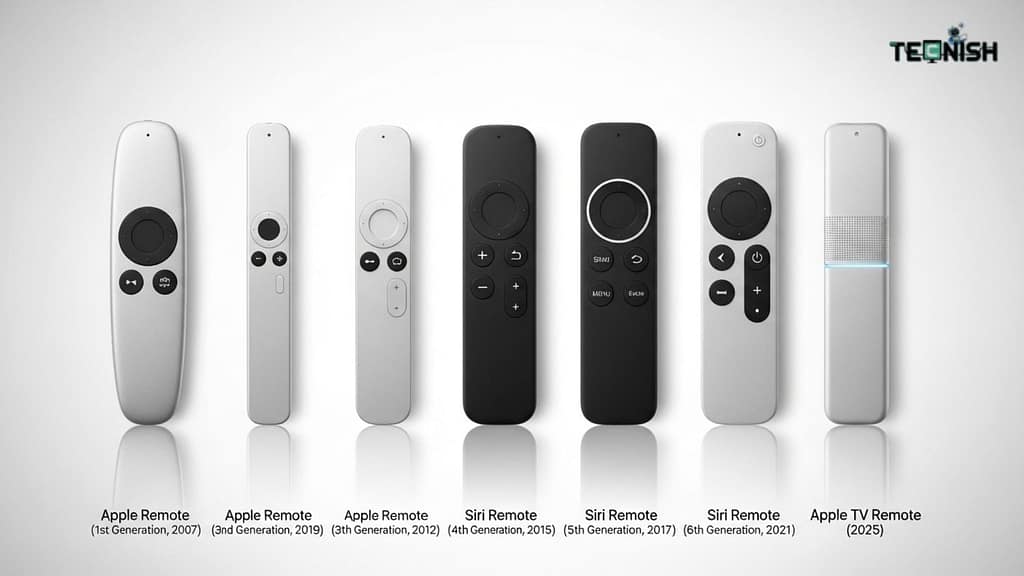
while newer Siri Remotes come with built-in rechargeable batteries (charged via Lightning or USB-C). Identifying the correct model ensures you don’t waste time trying the wrong method.
Here’s a quick reference table that makes it easy to figure out your remote type:
| Model | Release Year | Battery Type | Replaceable? |
| Aluminum Remote (Silver) | 2007–2015 | CR2032 coin battery | Yes |
| Black Plastic Remote | 2010–2012 | CR2032 coin battery | Yes |
| Siri Remote (1st Gen) | 2015 | Built-in rechargeable (Lightning) | No (charge only) |
| Siri Remote (2nd Gen) | 2021 | Built-in rechargeable (Lightning) | No |
| Siri Remote (3rd Gen) | 2022+ | Built-in rechargeable (USB-C) | No |
👉 As you can see, only the older aluminum and black plastic remotes allow direct battery replacement, while the Siri Remote lineup relies on recharging instead.
For more accuracy in identifying your exact model, you can always refer to the official Apple Support guide—a trusted resource to double-check remote design and features.
And since Apple products blend style and usability, don’t miss our take on design innovation in the Pink iPhone 13: Where Elegance Meets Innovation article.
Tools & Battery You’ll Need
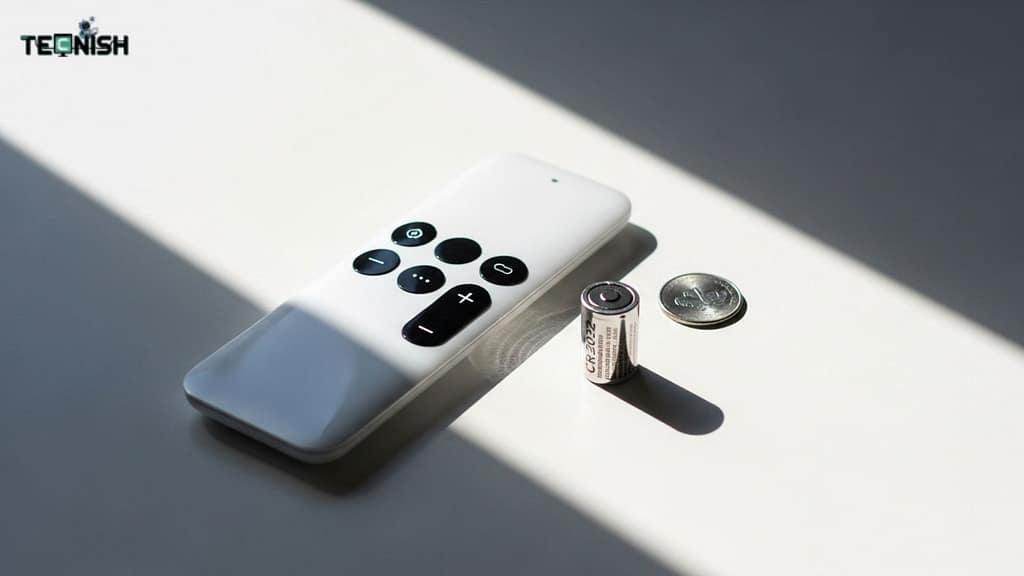
Before you begin replacing or charging your Apple TV remote battery, it’s important to have the right tools and battery type on hand. Using incorrect tools can damage the remote, and the wrong battery can affect performance or even prevent it from working.
Optional Tools
A standard coin, such as a quarter, is ideal for opening the battery cover on older Aluminum and Black Plastic remotes. Additionally, using a soft cloth or gloves helps prevent fingerprints or scratches while handling the remote.
Types of Apple TV Remote Battery
Older Aluminum and Black Plastic Apple TV remotes use a CR2032 coin cell. Always choose high-quality branded batteries to ensure long-lasting performance.
The Siri Remote series (1st, 2nd, and 3rd generation) comes with a built-in rechargeable battery. These do not need replacement—simply charge them via the Lightning cable for the 1st and 2nd generation or USB-C for the 3rd generation. Knowing the type of battery in your remote ensures you follow the correct procedure and avoid mistakes.
If you are replacing CR2032 batteries, consider purchasing a reliable pack from Amazon: Amazon CR2032 Battery Pack. Using high-quality batteries guarantees your remote works consistently and extends its lifespan.
For a deeper understanding of CR2032 batteries, including technical specifications, lifespan, and best practices, visit Battery University / Wikipedia. This will help you choose the right battery and understand why some brands perform better than others.
Step-by-Step Guide: Changing the Battery
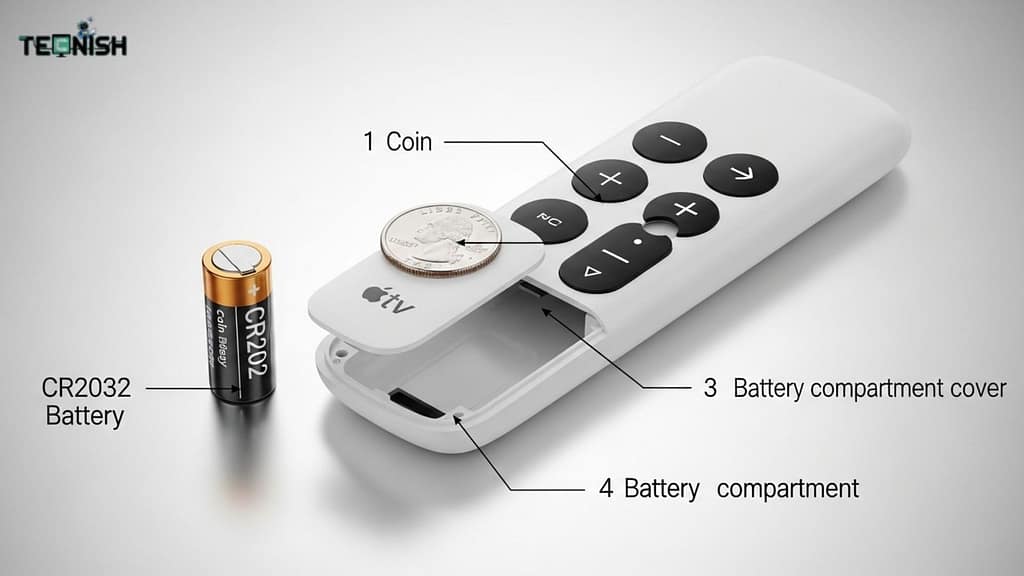
Knowing exactly how to replace or charge your Apple TV remote battery ensures uninterrupted entertainment and avoids accidental damage. This step-by-step guide covers all models, from older Aluminum and Black Plastic remotes to the latest Siri Remotes.
Aluminum Remote (Silver)
- Flip your Aluminum remote to access the back.
- Use a standard coin to twist and open the battery door gently.
- Remove the old CR2032 coin cell.
- Insert a new battery with the positive side facing up.
- Close the battery cover securely.
Black Plastic Remote
The procedure is similar to the Aluminum remote, but note that the battery compartment slides down instead of twisting. Remove the old CR2032 battery, insert the new one correctly, and slide the cover back into place.
Siri Remote (1st, 2nd, and 3rd Generation)
Siri Remotes do not allow battery replacement. Instead, they feature built-in rechargeable batteries:
- 1st & 2nd Generation: Charge using a Lightning cable.
- 3rd Generation: Charge via USB-C cable.
Charging typically takes around 2 hours, and a full charge can last several months under normal usage.
Visual Guidance
For clarity, consider using diagrams or photos to illustrate the battery compartment and correct battery orientation. This visual reference reduces errors and speeds up the process.
How to Check If the Remote Battery Is Low
Keeping your Apple TV remote fully functional starts with knowing when its battery is running low. Detecting early signs of low battery ensures you avoid frustrating interruptions during movie nights, binge-watching sessions, or gaming experiences.
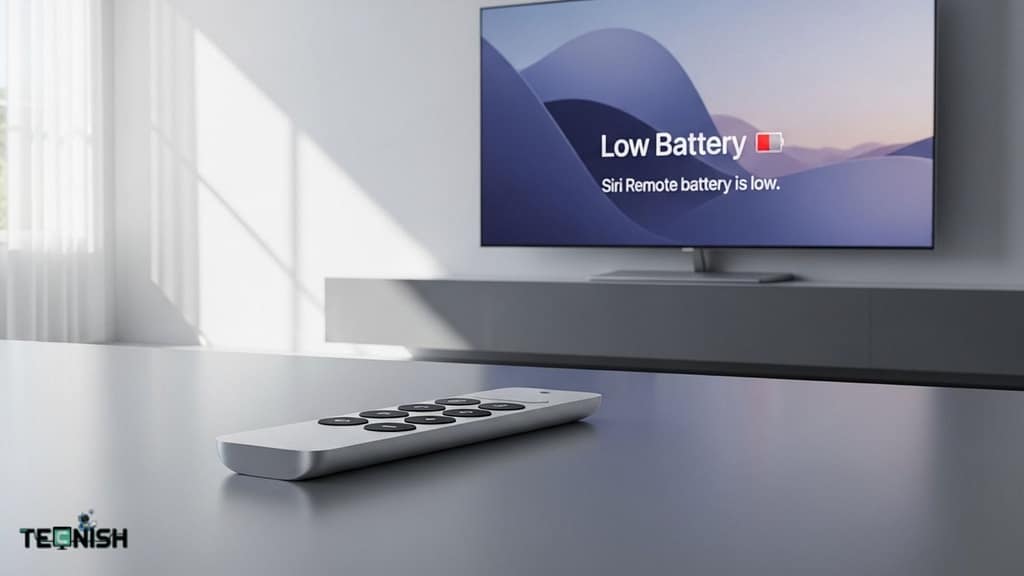
Check Battery Level on Apple TV
- Open Settings on your Apple TV.
- Navigate to Remotes and Devices > Remote.
- Look for the Battery Level indicator.
This quick check lets you know if it’s time to replace or recharge your remote’s battery.
Common Signs of Low Battery
Even before checking the settings, these noticeable behaviors often indicate a weakening battery:
- Delayed response: Buttons take longer to register commands.
- No light or indicator: The remote’s LED may not flash during operation.
- Frequent disconnection: The remote loses pairing with Apple TV randomly.
- Unresponsive Siri commands: Voice controls lag or fail.
Troubleshooting Tips
If you notice low battery signs but the battery seems fine, try these steps:
- Check battery orientation: Ensure CR2032 batteries are inserted with the positive side up.
- Re-pair the remote: Hold Back + Volume Up for 5 seconds to reconnect.
- Restart Apple TV: Power cycle your device to refresh connections.
- Clean contact points: Dust or dirt in the battery compartment can block power flow.
Pro Tips to Avoid Low Battery Frustration
- Monitor battery regularly: Checking once a month prevents unexpected shutdowns.
- Minimize heavy usage: Features like continuous Siri activation can drain batteries faster.
- Use high-quality batteries: Branded CR2032 batteries last longer and provide stable power.
- Charge intelligently: For Siri Remotes, avoid overcharging to preserve battery lifespan.
With these simple checks and tips, your Apple TV remote will stay fully operational, letting you enjoy seamless streaming, gaming, and navigation. Early detection of battery issues saves both time and stress.
Troubleshooting After Battery Change
Even after replacing or recharging your Apple TV remote, issues can sometimes occur. Knowing how to troubleshoot effectively ensures that your device remains responsive and you avoid frustrating interruptions.
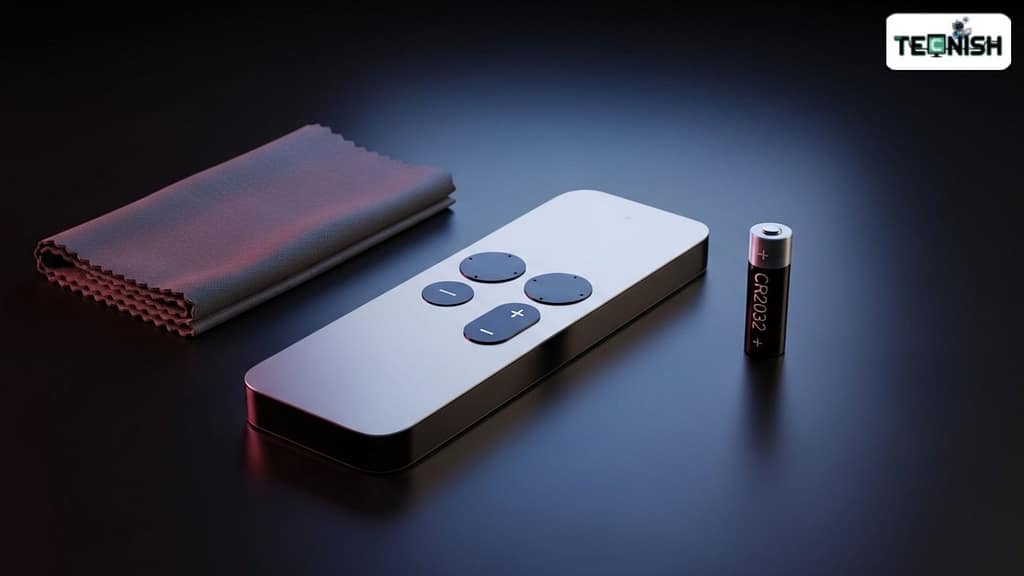
Common Issues After Battery Replacement
- Remote not responding: Button presses do not register.
- Intermittent disconnection: Remote randomly disconnects from Apple TV.
- Unresponsive Siri commands: Voice control features fail to work.
Step-by-Step Troubleshooting Guide
- Check Battery Orientation
Ensure CR2032 batteries are inserted correctly with the positive side facing up. Improper orientation is the most common cause of remote malfunctions. - Re-Pair Your Remote
- Press and hold Back + Volume Up for 5 seconds.
- Wait until the Apple TV recognizes the remote.
- This is especially helpful if the remote loses connection after a battery replacement.
- Press and hold Back + Volume Up for 5 seconds.
- Restart Apple TV
- Navigate to Settings > System > Restart.
- A quick restart can refresh device connections and resolve minor glitches.
- Navigate to Settings > System > Restart.
- Clean Battery Contacts
- Dust, dirt, or corrosion in the battery compartment can block power flow.
- Use a soft cloth or cotton swab to gently clean contacts.
- Dust, dirt, or corrosion in the battery compartment can block power flow.
- Test with Another Battery
- If problems persist, try using a new high-quality CR2032 battery.
- Branded batteries often perform better and reduce risk of inconsistent power.
- If problems persist, try using a new high-quality CR2032 battery.
- External Resources for Help
- For in-depth troubleshooting or firmware issues, check the official Apple Support page.
- Learn more about CR2032 battery specifications at Battery University.
- For in-depth troubleshooting or firmware issues, check the official Apple Support page.
Pro Tips for Long-Term Remote Reliability
Maintaining your Apple TV remote’s performance goes beyond just changing batteries. Follow these expert tips to keep your remote responsive, reliable, and ready for uninterrupted streaming:
Use Fresh Batteries Consistently
Avoid mixing old and new CR2032 batteries, as mismatched power levels can cause intermittent remote failures or sudden shutdowns.
Charge Siri Remotes Properly
For Siri remotes, charge only when necessary. Overcharging repeatedly may shorten battery lifespan, while responsible charging ensures months of smooth streaming.
Keep Spares Ready
Always have extra batteries on hand. This simple precaution prevents sudden interruptions during long movie nights or binge-watching sessions.
By following these simple yet effective tips, your Apple TV remote will stay responsive and reliable, allowing you to navigate seamlessly and enjoy uninterrupted entertainment every time you hit the play button.
Tips to Make Your Apple TV Remote Battery Last Longer
Keeping your Apple TV remote powered efficiently ensures uninterrupted streaming and smooth navigation. Follow these expert tips to maximize battery life and extend remote performance:
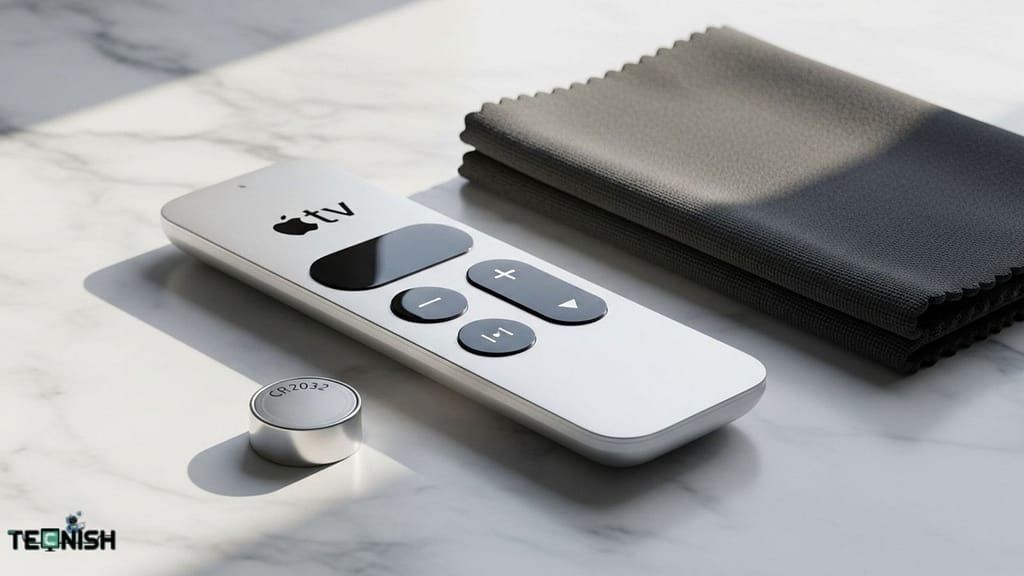
1. Limit Siri Usage When Not Needed
The Siri microphone consumes more battery power than standard button presses. Use voice commands only when necessary to conserve energy for longer sessions.
2. Store Your Remote in a Cool, Dry Place

Extreme heat, humidity, or direct sunlight can degrade battery performance. Keep your remote in a stable environment to maintain consistent battery life.
3. Avoid Overcharging Rechargeable Siri Remotes
For built-in rechargeable models (Lightning or USB-C), unplug after fully charged. Overcharging repeatedly can reduce the battery’s lifespan and affect long-term performance.
4. Use Branded, High-Quality CR2032 Batteries

For older aluminum or black plastic remotes, investing in branded CR2032 batteries ensures consistent voltage, reliability, and longer intervals between replacements.
5. Learn More About Battery Care
For general insights on battery maintenance and best practices, consult expert resources such as Battery University to understand battery chemistry and longevity tips.
By applying these strategies, your Apple TV remote will remain reliable, responsive, and ready to deliver smooth, uninterrupted entertainment, letting you enjoy your streaming experience without unexpected interruptions.
Final Wrap-up: Keep Your Apple TV Remote Always Ready
Replacing or charging your Apple TV remote battery is simple, but proper care ensures long-term reliability and uninterrupted streaming. By following this comprehensive guide, you now know how to:
- Identify your Apple TV remote model correctly and understand its battery system.
- Use the right tools and batteries for smooth replacements.
- Change or charge batteries step-by-step for all remote types, including Aluminum, Black Plastic, and Siri remotes.
- Troubleshoot common issues that may arise after battery replacement.
- Apply pro tips and maintenance strategies to maximize battery lifespan.
- Extend battery life further with smart usage, storage, and high-quality batteries.
With these insights, your Apple TV remote will remain responsive, reliable, and ready for seamless navigation every time you sit down to watch your favorite shows or movies.
For more inspiration on combining style, technology, and innovation in your Apple ecosystem, don’t forget to explore our ‘Pink iPhone 13: Where Elegance Meets Innovation’ article.
By maintaining your remote properly, you ensure a smoother streaming experience, uninterrupted entertainment, and the peace of mind that comes with knowing your devices are always ready to perform.
FAQs About Apple TV Remote Battery Guide
Q1: Which battery does my Apple TV remote use?
Older Aluminum and Black Plastic remotes use CR2032 coin batteries, while Siri remotes (1st, 2nd, 3rd Gen) have built-in rechargeable batteries that cannot be replaced.
Q2: How long does the Apple TV remote battery last?
CR2032 batteries typically last several months, depending on usage. Siri remotes, when charged properly, can operate weeks to months on a single full charge.
Q3: Can I replace the battery in a Siri Remote?
No. Siri remotes come with built-in rechargeable batteries. You can only charge them via Lightning (1st & 2nd Gen) or USB-C (3rd Gen) ports.
Q4: Why is my Apple TV remote not working after changing the battery?
Common causes include:
- Incorrect battery orientation (positive side up for CR2032)
- Loose battery cover
- Remote pairing issue with Apple TV
Following proper installation and troubleshooting steps usually restores functionality.
Q5: How do I charge my Apple TV Siri Remote?
- 1st & 2nd Gen Siri Remote: Use a Lightning cable. Charge ≈ 2 hours.
- 3rd Gen Siri Remote: Use a USB-C cable. Charge ≈ 2 hours.
Avoid overcharging to maintain long-term battery health.
Q6: How can I maximize the battery life of my Apple TV remote?
- Limit unnecessary Siri microphone usage.
- Store the remote in a cool, dry place.
- Use branded CR2032 batteries for older remotes.
- Charge Siri remotes responsibly and avoid overcharging.
For extra tips on Apple ecosystem gadgets, explore our guide on ‘Pink iPhone 13: Where Elegance Meets Innovation’.