
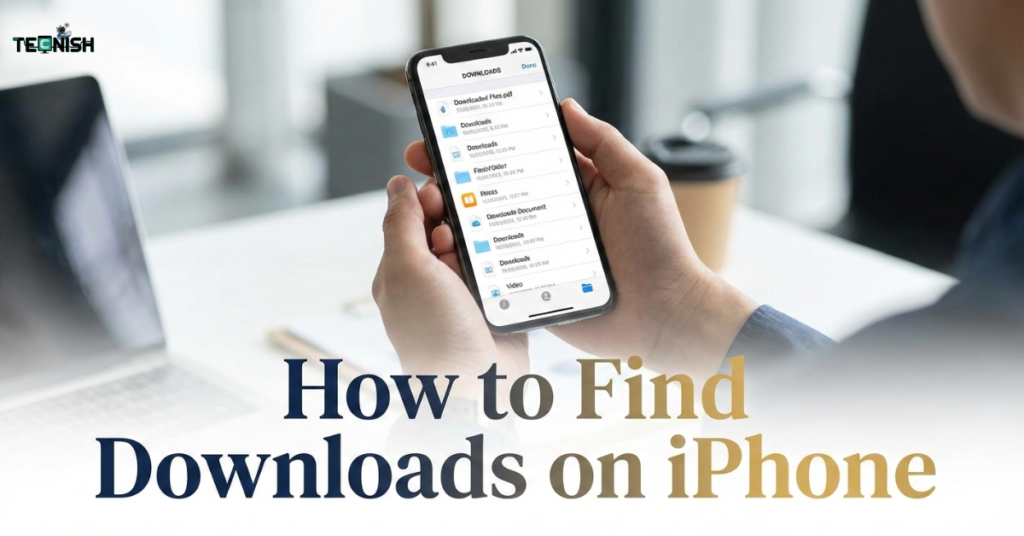

Have you ever downloaded something on your iPhone and then paused, thinking, “Okay… where did it go?” You’re definitely not alone. This is one of the most common questions iPhone users ask, no matter how long they’ve been using their device. The truth is, iPhones don’t work like computers, and that’s where the confusion starts. There’s no big button labeled “Downloads.” That’s why learning how to find downloads on iPhone is so helpful. Whether you downloaded a PDF, an image, or a music file, this guide will gently walk you through everything step by step, without tech stress. For more simple Apple tips, you can always explore Tecnish – Your Trusted Tech Guide.
Where Do Downloads Go on iPhone? (Important to Understand First)
Before you truly understand how to find downloads on iPhone, you need to know how Apple organizes files behind the scenes. Many users ask where are downloads stored on iPhone, and the answer isn’t as simple as one folder.
Unlike a computer, iOS saves files based on their type and the app used to download them. That’s why people often search for iPhone downloads folder location and feel confused when they don’t see one clear option. Apple focuses more on app-based organization than folder-based storage.
If you enjoy learning how Apple hides things smartly, you may also find this helpful: How to Find Hidden Apps on iPhone (Updated Guide).
How to Find Downloads on iPhone Using the Files App (Main Method)
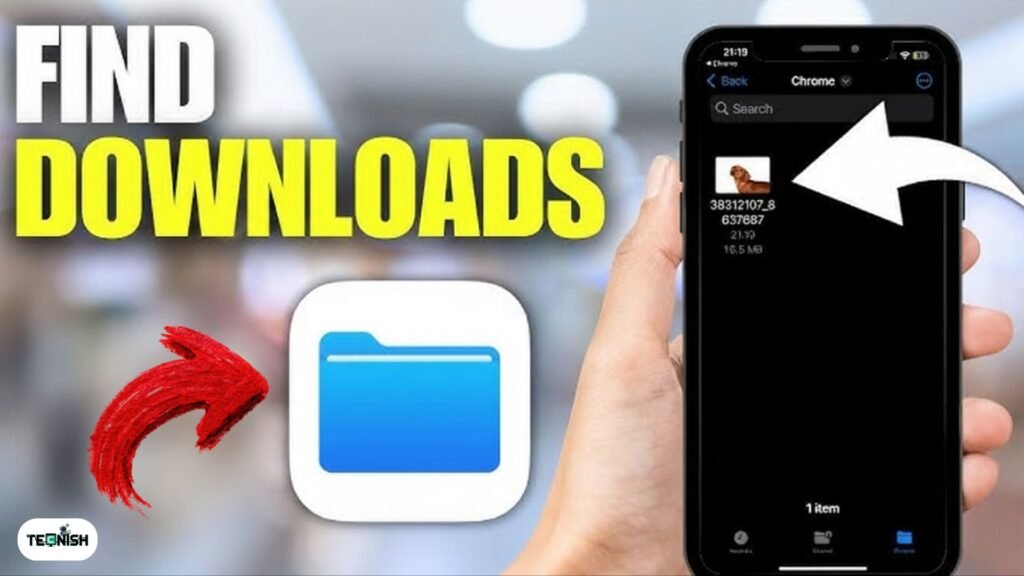
If you’re trying to learn how to find downloaded files on iPhone, the Files app is your best friend. This app handles most document-style downloads and works as a central storage area.
Open the Files App on iPhone
The Files app is already installed on your device. If you don’t see it, swipe down on the Home Screen and search for “Files.” Tap the blue folder icon to open it.
This is where most Files app downloads on iPhone are stored, especially files downloaded from browsers or emails.
Go to the Downloads Folder
Inside the Files app, tap “Browse,” then choose “On My iPhone.” You’ll usually see a folder named Downloads. This is where many browser downloads are saved automatically.
If you often read tech guides and tips, browsing through Tecnish Tech Blogs can also help you discover useful iPhone tricks.
Search for a Downloaded File
If you can’t remember the file name, don’t worry. The search bar at the top lets you quickly look up files. Learning how to search files on iPhone is one of the easiest ways to save time when managing downloads.
How to Find Downloads from Safari on iPhone
Safari is the most common place people download files, so it plays a big role in how to find downloads on iPhone.
Check Safari’s Download Manager
When you download a file in Safari, a small arrow icon appears near the address bar. Tapping it shows recent downloads and their progress.
Access Safari Downloads from the Files App
Many users ask where do Safari downloads go on iPhone, and the answer is simple. Safari saves files to the Files app by default. This setting is known as the iPhone Safari download location, and it works for PDFs, documents, and many images.
For more Apple-related updates, you can also check Latest Tech News on Tecnish.
How to Find Downloaded Photos & Videos on iPhone
Photos and videos are usually easy to find.
how to find downloads on iPhone? Open the Photos app, and most downloaded images will appear there automatically. The Recents tab is especially helpful when trying how to view downloads on iPhone that were saved recently.
If you love customizing your iPhone visuals, you might enjoy iOS 26 Wallpapers – Change Your Phone with Cool Designs.
How to Find Downloaded Music & Audio Files on iPhone
Music and audio files follow different rules.
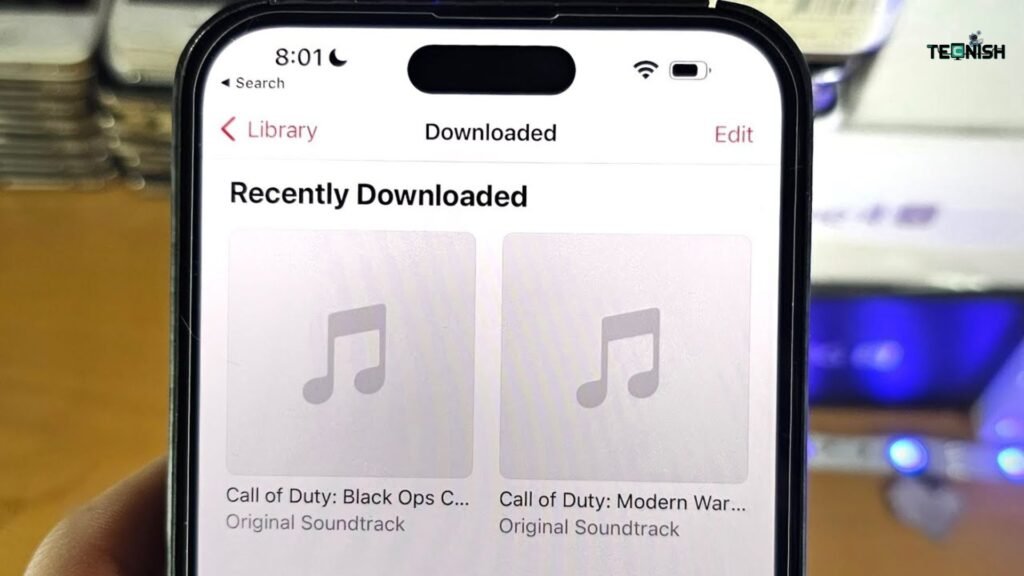
Songs downloaded from Apple Music stay inside the Music app. These files don’t appear in Files, and that’s normal.
Audio files downloaded from websites or emails usually go to the Files app. This is useful for podcasts, lessons, or recordings saved from the web. You can explore more related content under Software and Apps Guides.
How to Find Downloaded Apps on iPhone
Apps don’t appear in the Files app, which confuses many users. Swipe left until you reach the App Library and search by app name. This is the fastest way to locate installed apps.
Best way to find download apps on APP STORE. Where you can see all the apps you downloaded and update apps with one single click.
If you’re managing contacts or privacy settings, this guide may help too: How to See Blocked Numbers on iPhone – Easy Guide.
How to Change the Download Location on iPhone (Optional but Powerful)
Once you understand how to find downloads on iPhone, you may want more control over file storage.
Change Safari Download Location
You can change download location on iPhone by going to Settings, then Safari, then Downloads. Here, you can choose between iCloud Drive or saving files directly on your device.
Why Changing Download Location Helps
Changing this setting can:
- Make files easier to manage
- Reduce confusion
- Speed up access
This is especially useful for users who download files often.
Can’t Find Your Download? Try These Quick Fixes

If you feel like files are missing, you’re not alone. Many users search for downloaded files not showing on iPhone, even though the files are still there.
Try this:
- Think about which app you used
- Search by file name
- Sort files by date
- Restart your iPhone
In most cases, the file is simply stored in a different app.
If you didn’t found don’t worry. Here you can know a more in-depth solution article about iPhone downloaded files missing.
FAQs About Finding Downloads on iPhone
Where are PDF downloads stored on iPhone?
If you’re wondering where are PDF downloads saved on iPhone, they are usually found in the Files app under the Downloads folder.
Why can’t I see my downloads?
They may be stored in Photos, Music, or Files depending on the file type.
Does iPhone have a Downloads folder?
Yes. Many people ask does iPhone have a downloads folder, and the answer is yes but it’s inside the Files app.
How do I find old downloads?
Use the Files app search and sort by date to locate older files.
Final Thoughts – Finding Downloads on iPhone Made Simple
The key thing to remember is that iPhones don’t use one single downloads folder for everything. Once you understand where different file types go, how to find downloads on iPhone becomes simple and stress-free. The Files app is your main tool, and knowing the download source saves time. With this knowledge, you’ll never feel lost again when downloading files on your iPhone.
If you find this “how to find downloads on iPhone” insightful then don’t leave a comment and keep following Tecnish.