


Learning how to hide apps on android is a simple way to keep your phone clean, private, and easy to use. Sometimes you want certain apps out of sight so your home screen feels calm and organized. Other times, you just want a little extra privacy. Android makes this easy with tools like Android app visibility settings and smart privacy controls.
This guide explains everything in a friendly, kid-easy way, helping you stay safe and responsible while using your device. By the end, you’ll know the best and safest ways to manage your apps without breaking anything or getting confused. For more helpful guides like this, you can always explore Tecnish.
Understanding App Privacy on Android

App privacy is all about keeping your phone tidy and safe. Many people learn how to hide apps on Android because they don’t want a crowded screen or prefer certain things to stay private. It’s important to understand the difference between hiding, moving, and disabling apps.
Hiding means you still have the app, but it’s not visible. Disabling means turning off apps you never use. Organizing apps is just rearranging them neatly. None of these actions are wrong they’re simply ways to feel more comfortable and in control of your device. If you enjoy learning simple tech tips, theTech Blogs section on Tecnish has plenty of helpful guides.
Important Safety Notes Before You Start
Even simple changes should be done safely. If you’re younger, it’s smart to talk to a parent or guardian before adjusting privacy settings. Learning how to hide apps on Android can make your screen look cleaner and more organized, but it doesn’t replace real security features. It won’t stop apps from collecting data or fix issues like malware.
This is why safe behavior matters. Being honest, responsible, and careful helps you stay protected. Think of hiding apps as organizing a drawer tidy helpful, but not a lock. If you ever feel unsure, ask an adult for help. You can also browse Software & Apps topics to understand more about safe app use.
Ways to Manage App Visibility on Android
Using Built-In Home Screen Settings
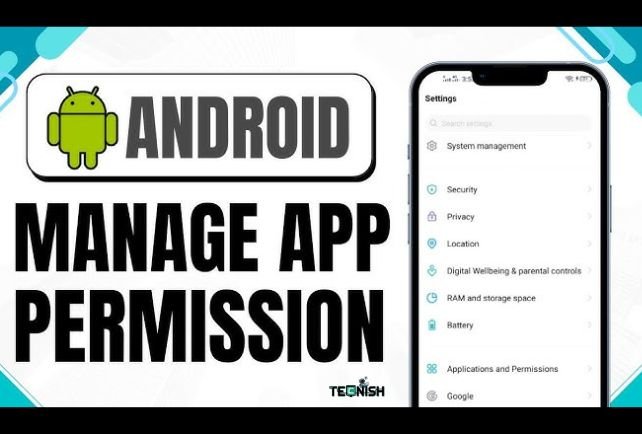
how to hide apps on Android? Most Android phones make hiding apps simple. You can move apps into folders to reduce clutter, or turn off suggestions so fewer icons appear. This is the easiest way to keep your phone neat without changing anything major. Moving things around helps organize apps on Android in a friendly and safe way. It’s like cleaning your desk everything feels better when it’s in the right place. You can also explore Android home screen customization features, which help your apps look tidy and easy to find.
Using “Disable App” for System Apps You Don’t Use
Some apps are built into your phone, and you can’t uninstall them. But you can disable many of them. Disabling hides the app and stops it from running. It’s useful for apps you never touch. Just be careful some apps should not be disabled because your phone needs them to work properly. When used safely, disable apps on Android features help remove clutter and keep your device running smoothly. It’s a smart way to clean up space without deleting anything important.
Using Secure Folders for Additional Privacy
What Is a Secure Folder?
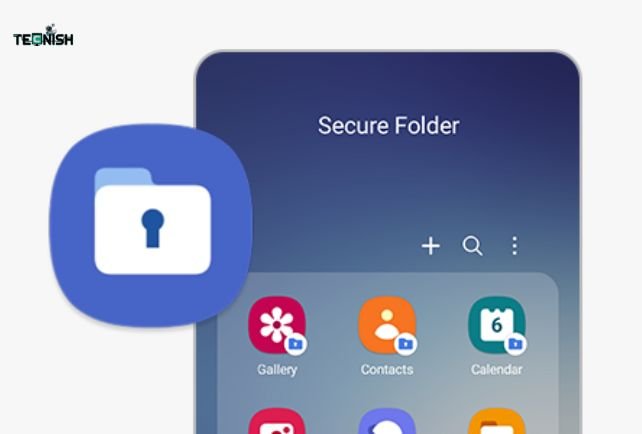
A Secure Folder is like a secret box on your phone. It keeps apps and files locked away, protected by a password. This is one of the safest ways to hide private apps, and it’s much better than using random third-party tools. With Secure Folder for Android apps, you can keep pictures, notes, or apps away from prying eyes. It’s perfect for things you want to keep extra safe. See how to hide apps on Android with secure folder.
Setting Up a Secure Folder (General Overview)
Setting one up is simple. To learn how to hide apps on Android, you choose a lock type PIN, pattern, or fingerprint and then add only the apps or files you want inside. Think of it as a mini-phone inside your phone. Just remember to use this feature responsibly. Don’t hide anything unsafe, and always tell a trusted adult if you’re unsure about privacy settings.
Understanding App Permissions & Privacy Controls
Phone permissions decide what apps can do, like whether they can use your camera or location. Learning about these controls helps you keep your device safe. Checking permissions often unlocks stronger Android privacy features, making your phone harder to misuse. With good Android permission management, you can stop apps from accessing things they don’t need. This keeps your phone safe, clean, and stress-free.
How Different Android Brands Handle App Visibility
If You want to know how to hide apps on Android then there are different brand handling different visibility.
Samsung
Samsung phones offer great privacy tools. They include Secure Folder and easy home-screen options for hiding apps. You can hide icons, lock apps, and organize everything neatly.
Xiaomi / Redmi
Xiaomi’s MIUI system includes private spaces and strong folder tools. With features like Manage app visibility on Android built in, you can hide or group apps easily.
OnePlus
OnePlus phones include Hidden Space, a special spot where apps can be placed out of sight. It works smoothly and safely within the system.
Google Pixel
Pixel Launcher gives you simple tools for tidy App drawer organization and visibility control. Everything is clean, minimal, and secure.
Safer Alternatives to Hiding Apps
Instead of hiding apps, you can use screen-time controls, app locks approved by adults, or simple layout changes. Sometimes a cleaner home screen is enough to help focus better. Using these options is a way to hide apps responsibly on Android without taking risks. If you want to learn more about managing hidden content on different devices, you can check out related guides like how to find hidden apps on iPhone.
Why You Should Avoid Third-Party App-Hiding Tools
Security Risks

Many app-hiding tools available from the app store can be unsafe. Some may contain malware, track your data, or use shady privacy practices that put your personal information at risk. Learning how to hide apps on Android can be useful for organizing your phone, but keeping your device safe is far more important than simply hiding apps.
Always choose trusted methods and apps, and prioritize security over convenience to protect your data and privacy. If you like staying updated on security news, theTech News section is helpful.
Battery & Performance Impact
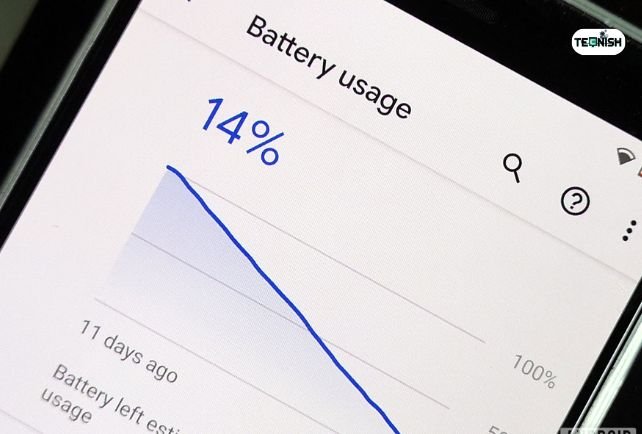
These apps can slow your phone, drain your battery, or freeze your screen. Built-in tools are always a better choice than risky apps.
How to Keep Your Android Device Organized Long-Term
Keeping your Android device organized isn’t something you do once and forget about, it’s more like taking care of your room a little bit every week. Start by removing apps you haven’t used in a long time. Unused apps take up space, slow down your phone, and make your home screen feel messy. If you like learning simple ways to care for your device, the guides on Tecnish are great for beginners.
Next, check your app permissions regularly. This keeps your information safe and prevents apps from doing things you don’t want. Updating your software is also important because updates fix bugs and help your phone stay smooth and secure. You can organize your apps into folders like “Games,” “School,” or “Favorites,” and learning how to hide apps on Android adds another layer of tidiness, making everything easier to find while keeping your home screen neat. This also helps you clean and declutter Android home screen areas so your device feels peaceful, not stressful.
You can also explore helpful topics related to app and device care in the Software & Apps category. With a bit of attention here and there, your phone will always feel fresh, fast, and fun to use.
Common Problems & Safe Fixes
Even when you organize things correctly or learn how to hide apps on android, small problems can still show up. For example, hidden apps might appear again in search or reappear after software updates. Don’t worry this is normal and easy to fix. The first thing to try is restarting your device. A simple restart often works like magic.
If that doesn’t help, check your launcher settings. Sometimes launchers update automatically, which may change visibility settings or move icons around. Refreshing your home screen layout usually fixes this quickly. In rare cases, Android launcher privacy options may glitch, but clearing the launcher’s cache or updating it usually solves the issue.
For more troubleshooting ideas and how to hide apps on Android like this, you can browse related articles on Tecnish Tech Blogs. You’ll always find practical tips you can understand easily.
Benefits of Maintaining a Clean & Safe Home Screen

When your home screen is clean and organized, everything feels easier. You find apps quicker, stay more focused, and waste less time scrolling. Studies show that a tidy digital space can reduce stress, much like a clean desk helps you concentrate. Learning how to hide apps on Android can be a simple step toward this kind of organization, letting you enjoy your phone more and avoid digital clutter.
A neat layout also improves your device’s performance. Fewer icons and widgets mean fewer things for your phone to load, helping it run faster and smoother.
Good sensitive app management also protects your private apps from being seen by others. If you like reading simple tech improvements or staying updated on trends, the Tech News section is a great place to explore.
Keeping things clean doesn’t just make your phone look nice it improves speed, safety, and your overall digital happiness.
Final Tips for Responsible App Management
Being responsible with your phone means using privacy and organizing tools wisely. Before hiding an app, be honest about your reason. If you’re a kid or teen, talk to a parent or trusted adult so they can guide you safely. Privacy tools are meant to help you feel organized and comfortable not to hide unsafe behavior.
Try to balance privacy with safety. Learning how to hide apps on Android using built-in tools is safer than relying on risky third-party apps. Keep your software updated and check app permissions regularly. A tidy, well-organized device is not only easier to use but also much safer. For more tips like this, you can also check related helpful guides such as how to find hidden apps on iPhone.
When you use your device responsibly, you protect your information, your safety, and your peace of mind all while enjoying a cleaner, smarter phone experience.
Conclusion
Managing apps on your Android device doesn’t have to be confusing or overwhelming. By using the built-in tools, secure folders, and smart organization techniques, you can effectively control which apps are visible and which remain private. Learning how to hide apps on Android not only keeps your home screen tidy but also enhances your privacy and security.
Following the steps and tips outlined in this guide ensures you stay confident, organized, and fully in control of your device. Remember, being responsible with your apps and digital content is just as important as staying safe in the real world, and a well-managed phone makes everyday use smoother and more enjoyable.
FAQs
1. Is hiding apps on Android safe?
Yes, when using built-in features.
2. Can hidden apps still run in the background?
Some can, depending on the app.
3. Do all Android phones support app hiding?
Most do, but tools vary by brand.
4. How do you keep your phone organized without hiding apps?
Use folders, layout tools, and screen-time controls.
5. What’s the safest way to manage sensitive apps?
Use Secure Folder or built-in privacy features.
If you find this ‘’how to hide apps on Android’’ insightful then don’t leave a comment. Stay connected with Tecnish for more news and blogs.