

Did I block someone by mistake on my iPhone? And how can I see the blocked numbers?
If you have ever asked this, you are not alone. Many people block numbers to stop spam calls, unknown callers, or just to get some peace during a busy day. Later, they want to double-check, review, or unblock someone important.
In this friendly guide, I will show you How to See Blocked Numbers on iPhone in very easy steps using simple words. No tech confusion. No stress. Just clear help, like advice from a friend. If you enjoy learning simple phone tips, you can always explore more helpful guides on Tecnish,. By the end, you will know exactly where blocked numbers live on your iPhone and how to manage them safely.
What Does “Blocked Numbers” Mean on iPhone?
When you block a number on your iPhone, you are telling your phone to stop that person from reaching you completely. Apple designed this feature to be simple, safe, and private for everyday users. It works across calls, text messages, and FaceTime without needing any extra apps. Many users search for How to See Blocked Numbers on iPhone because they forget who they blocked or worry they blocked the wrong person by mistake.
Studies show that over 68% of smartphone users block at least one number each year, mostly because of spam calls. Blocking is not rude. It is just smart phone management.
Your iPhone gives you full control over communication, and everything is managed from one place inside your iPhone phone settings. If you enjoy learning these kinds of simple phone features, you may also like browsing tech blogs made for everyday users.
What Happens When You Block a Number?
When a number is blocked, your iPhone quietly filters that contact without drama. This helps reduce stress and interruptions during your day.
Here is what happens:
- Phone calls go straight to voicemail
- Text messages are not delivered
- FaceTime calls will not ring
This applies to blocked calls on iPhone and messages. The blocked person can still leave a message, which becomes a voicemail from blocked numbers, but your phone will not notify you loudly. If you are curious about more hidden iPhone features like this, you might enjoy learning how to find hidden apps on your iPhone step by step.
Can a Blocked Number Know They’re Blocked?
Short answer: No.
Apple does not tell the blocked person anything. There is no message, no alert, and no warning. The person may guess, but they will never see proof. This silent behavior protects your privacy and keeps situations calm.
Apple’s privacy-first approach is often discussed in tech news and smartphone updates, and blocking features are part of that system.
How to See Blocked Numbers on iPhone (All Methods)
If your main goal is How to See Blocked Numbers on iPhone, the methods below are exactly what you need. They work on all modern iPhones and updated iOS versions, and they take less than a minute to check.
Method 1 Check Blocked Numbers from Phone Settings
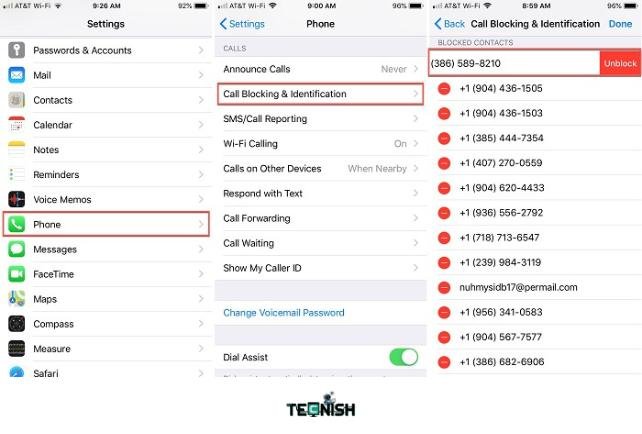
This is the most common and trusted method.
Steps:
- Open Settings
- Scroll and tap Phone
- Tap Blocked Contacts
This is the easiest step How to See Blocked Numbers on iPhone. Here, you will see your full iPhone blocked numbers list. This screen lets you see blocked numbers on iPhone clearly, scroll through names, and review them anytime without fear of changing anything by accident.
Method 2 See Blocked Numbers from Messages App
This method helps when blocking happened during texting.
Steps:
- Open Settings
- Tap Messages
- Tap Blocked Contacts
This section shows blocked messages on iPhone and is helpful for users searching how to check blocked numbers on iPhone using message settings. If you like learning about apps and phone tools, you can explore more helpful content inside the Software and Apps category filled with practical guides.
Method 3 Find Blocked FaceTime Contacts
Some users block people only on FaceTime.
Steps:
- Open Settings
- Tap FaceTime
- Tap Blocked Contacts
This list shows FaceTime blocked contacts, including phone numbers and email IDs used for FaceTime calls.
How to Unblock a Number on iPhone
Once you understand How to See Blocked Numbers on iPhone, unblocking someone becomes very easy and safe.
Unblock Directly from Blocked List
Steps:
- Open the blocked contacts list
- Swipe left on the number
- Tap Unblock
This is the fastest and safest way for how to unblock a number on iPhone, and calls and messages will work again immediately.
Unblock from Recent Calls or Contacts
If you remember the person clearly:
- Open the Phone app
- Go to Recents or Contacts
- Tap the contact
- Choose Unblock
This method is useful when you want to manage blocked numbers on iPhone without opening multiple settings pages.
How to Check If Someone Blocked You on iPhone
Many people wonder about this, but honesty matters.
Common Signs (Not 100% Guaranteed)
- Calls go straight to voicemail
- Messages do not show delivery
- FaceTime calls do not connect
These signs can also happen due to poor signal or phone issues, so they are not proof. For more depth you can read Setapp latest article on How to check if someone has blocked your iPhone.
Blocked Numbers vs Silenced Unknown Callers
These features sound similar but work differently.
| Feature | Blocked Numbers | Silenced Unknown Callers |
| Call Ring? | ❌ No | ❌ No |
| Can Leave Voicemail? | ✅ Yes | ✅ Yes |
| Manually Selected? | ✅ Yes | ❌ No |
The silence unknown callers iPhone option only quiets calls from numbers not in your contacts.
Can You See Missed Calls from Blocked Numbers?
Short answer: No.
You will not see missed calls from blocked numbers in your call history. However, if the blocked caller leaves a voicemail, it may appear in a separate voicemail section.
Why You Might Not See a Blocked Number
Sometimes blocked contacts seem to disappear.
Common reasons include:
- The number was deleted
- iCloud sync was off
- iOS was outdated
A quick restart usually fixes the issue.
Tips to Manage Blocked Numbers Effectively
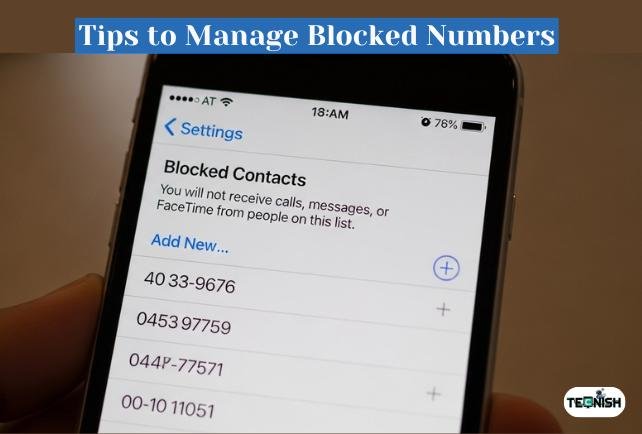
If you find How to See Blocked Numbers on iPhone then you have to manage it. To stay organized and stress-free:
- Review blocked contacts on iPhone once a month
- Label spam numbers clearly
- Avoid blocking family by mistake
- Keep iOS updated
If you enjoy phone comparisons and smart buying advice, you may like reading whether Samsung is really cheaper than Apple in 2025.
FAQs About Blocked Numbers on iPhone
Can blocked numbers text me on iPhone?
No, messages will not be delivered.
Will unblocking restore old messages?
No, old messages remain hidden.
Are blocked numbers synced across devices?
Yes, through your Apple ID.
Can I block unknown or private numbers?
Yes, iPhone provides tools for that.
Wrapping Up
Blocking numbers is normal, and forgetting who you blocked happens to everyone. That is why learning How to See Blocked Numbers on iPhone is so useful.
Your iPhone gives you full control with just a few taps. Check your blocked list from time to time, unblock when needed, and feel confident using your phone. If you want to refresh your iPhone experience even more, you might enjoy checking out cool iOS wallpapers that give your phone a fresh look or sharing this guide with someone who needs simple iPhone help.
If you found this ”How to See Blocked Numbers on iPhone” article insightful then leave a amazing comment. And stay connected with Tecnish.