
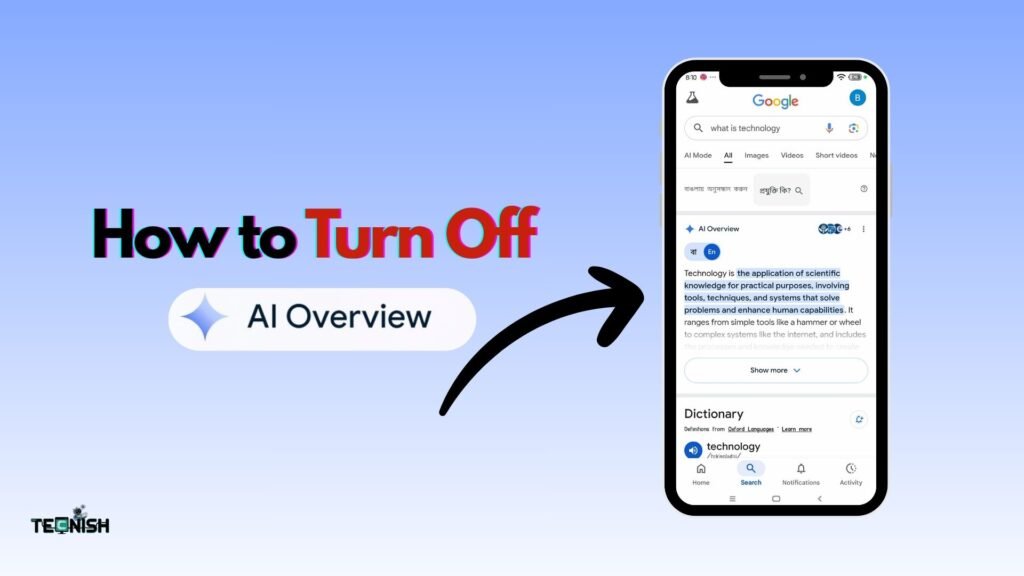

If you’ve searched for something on Google lately and noticed a big box at the top summarizing everything before the usual blue links, you’ve met Google’s new AI Overview. It’s designed to provide you with quick answers without requiring any clicks. Sounds convenient, right? Well, not everyone agrees. Many people are now looking for how to turn off AI Overview because they prefer exploring websites themselves instead of reading AI summaries that sometimes feel off or too robotic.
In fact, over 60% of users say they’d rather read real web pages than AI-generated summaries. Some find the feature helpful, but others find it confusing, slow, or even distracting. That’s why this simple guide exists to help you understand what AI Overview is, why it’s there, and how you can hide or disable it whether you’re on desktop or mobile. By the end, you’ll know exactly how to disable Google AI Overview, keep your searches clean, and get back to that classic Google experience we all love.
If you love keeping up with technology news, don’t miss our Tech Blogs section on Tecnish, where we share simple guides and honest reviews just like this one.
What Is Google’s AI Overview?
Let’s keep it simple: AI Overview is Google’s way of summarizing information using its smart AI brain. It reads through web pages, combines details, and then shows a neat summary right at the top.
Sounds helpful, right? Well… sometimes! The problem is, AI can make mistakes. In fact, a 2025 survey found that 1 in 5 AI summaries included inaccurate details. For people who rely on Google for schoolwork, research, or business, that’s a big deal.
Here’s what AI Overview does:
- Pulls short answers from multiple sources.
- Shows them above the usual results.
- Links to some pages it used.
- Often takes a few extra seconds to load.
Many users like the convenience. But others feel it hides real websites, slows down searches, or even makes them scroll more. So, it’s no wonder that people want to remove AI Overview from Google search and go back to the traditional style.
In short, AI Overview is helpful for quick answers but if you love exploring pages yourself, it might not be your favorite thing.
Curious how major tech giants are shaping AI? Check out our detailed post on Microsoft’s Latest AI Push in 2025 to see where this trend is heading.
Common User Question: Can You Really Turn Off AI Overview?
Here’s the short answer: not officially, at least not yet. Google doesn’t currently offer a simple switch in Google AI Overview settings to disable it entirely. The feature is still rolling out in many countries, and Google says it’s “testing new experiences” for users.
But don’t worry there are smart workarounds that genuinely work right now. Some users have discovered simple ways to bypass AI Overview in Google using search filters, URL tweaks, or browser extensions. For instance, adding the &udm=14 Google trick at the end of your search link instantly loads classic results, skipping the AI summary.
Others prefer using the “Web” tab filter a new option Google quietly added to show only traditional links. These tricks may not be permanent, but they’ll help you turn off Google AI results for as long as you like.
If you’re following the evolution of digital assistants, our article on The Rise of AI Assistants in 2025 gives great insight into how Google’s experiments fit the bigger AI picture.
Why You Might Want to Disable AI Overview
People have different reasons for wanting to stop AI summary on Google, and all of them make sense. Some users complain that it slows down their browser, especially on older computers or weak internet connections. Others say the summaries sometimes sound wrong or misleading and that’s frustrating when you rely on Google for accurate information.
There’s also a privacy concern. Since AI Overview uses your search history to “personalize” results, it may feel like Google is learning too much about you. That’s why more users are choosing to hide AI Overview Google features whenever possible.
And for those who create websites, there’s another issue: fewer clicks. If AI gives the answer right away, people might not visit the sites that originally provided that information. This shift affects content creators and businesses, which makes the debate even bigger. So whether it’s speed, accuracy, or privacy, knowing how to turn off AI Overview gives you back control over how you search.
For more tech-related insights, visit our Tech News section where we cover every major AI development shaping online experiences.
How to Turn Off AI Overview on Desktop
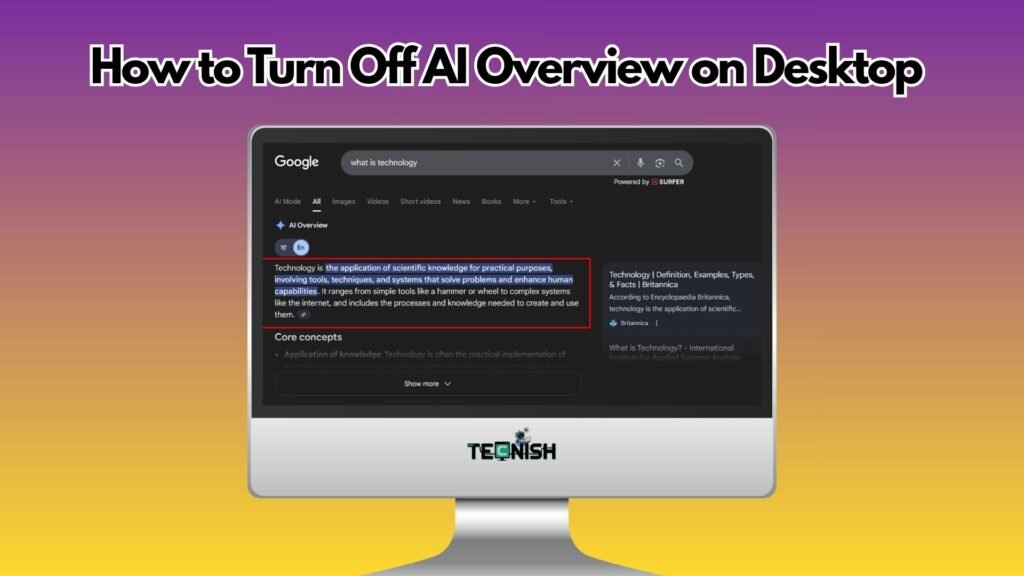
If you’re using a computer, learning how to turn off AI Overview on Chrome or any other browser is simple. You don’t need special software or tech skills just a few smart tricks.
One option is using the Web filter Google recently introduced. After typing your query, click “Web” at the top of the page. It removes the AI Overview and shows only standard websites. It’s quick and completely safe.
Another trick is editing your search link. Once your results load, look at the address bar and add this at the end: &udm=14. Hit Enter, and you’ll instantly see classic results no AI summaries. It’s the same method known online as the &udm=14 Google trick.
For those who want a permanent solution, you can install Chrome extensions to hide AI Overview like Old Google Search or Hide AI Answers. They automatically block AI Overview so you never see it again. These methods give you full control over your browsing without needing to touch complicated disable AI features in Google search options.
Want to explore how AI is affecting tech giants? You might enjoy reading How Mark Zuckerberg Lost $29B in Meta’s Big AI Bet.
How to Turn Off AI Overview on Mobile
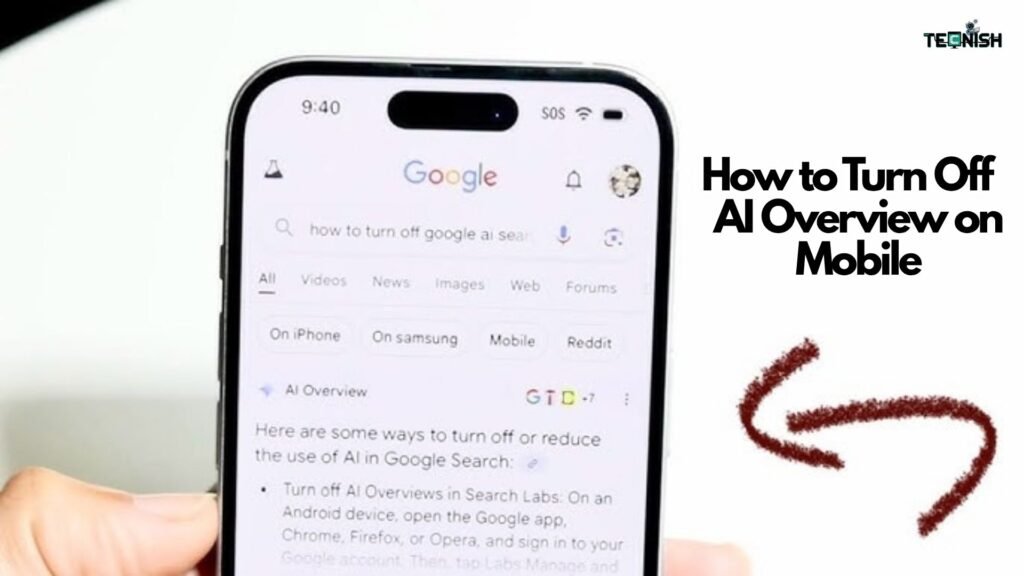
Most people use their phones for quick searches, so it’s no surprise many want to know how to disable AI Overview on mobile. If you’re using the Google app on Android or iPhone, open it, tap your profile icon, and go into Search settings. You might see an option to manage or turn off Search Generative Experience (SGE). If it’s there, disable it.
If not, you can still use the same “Web” filter trick. Just perform a search, tap “Web” at the top, and your results will load without AI. It works the same way as on desktop.
Some users prefer using mobile browsers like Brave or Firefox, which give you cleaner results automatically. This small switch lets you enjoy Google search without AI Overview while keeping the mobile experience smooth.
If you’re interested in other AI stories shaking the industry, visit our AI Robots category it’s packed with futuristic insights you’ll love.
Alternative Method: Use Google Search Filters
Even though there’s no one-click “off” button yet, filters are a great workaround. The switch to web filter Google search option basically lets you hide all AI Overview content. It gives you the plain, fast-loading result page from the good old days.
When you’re logged into your Google account, this filter even stays active between searches, so you don’t need to click it every time. It’s one of the easiest ways to get back the clean, classic layout without technical steps.
Advanced Trick: Adjusting Search Parameters Manually
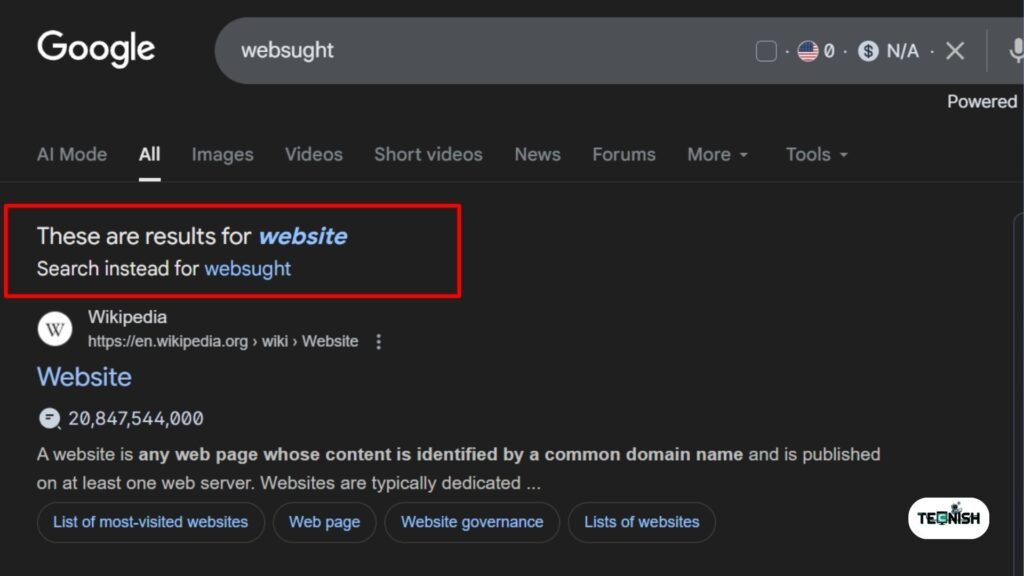
If you want something more advanced, there’s a manual method. When you search, look at your URL it’ll start with “google.com/search?”. At the end of it, simply add &udm=14 and press Enter. That command tells Google to load only web links, not summaries. It’s one of the simplest hacks for anyone learning how to turn off AI Overview effectively.
You can even save a custom bookmark in your browser that always includes this code. That way, every time you search, you’ll automatically remove AI Overview from Google search without any extra work.
Changing Your Default Search Engine
If you really want a break from AI results, you can also change default search engine to avoid AI Overview completely. Options like DuckDuckGo, Bing, and Brave Search all focus on privacy and show classic-style results.
| Search Engine | Uses AI Summaries | Focus | Privacy Level |
| Yes | Smart AI | Medium | |
| DuckDuckGo | No | Privacy | High |
| Brave | Limited | Fast, ad-free | High |
| Bing | Yes | AI Chat | Medium |
Switching is easy just open your browser settings and choose your new default. It’s a great choice if you want total control and no AI interference.
How AI Overview Affects SEO and Content Visibility
For creators and businesses, understanding how AI Overview affects SEO is essential. When AI summaries appear first, many users never scroll down to click real websites. This means lower traffic and fewer impressions for publishers.
To stay visible, websites now have to optimize for both AI Overview and traditional results. That means improving authority (E-E-A-T), writing clear answers, and using structured data. While this may sound technical, it’s simply about proving your content is trustworthy enough to be quoted or strong enough to compete when AI isn’t shown.
So even as users figure out how to get back classic Google search results, smart creators are learning to adapt.
The Future of AI Overview

There’s good news on the horizon. Many experts believe that the future of Google AI Overview includes more customization maybe even a real “off” button. Google has already hinted at giving users control over how AI content appears in search. Until then, using tricks like filters, URL parameters, or alternative search engines remains the best way to browse your way.
For regular updates on the future of AI, visit Tecnish.com your friendly hub for tech news, guides, and expert breakdowns.
Conclusion: Should You Turn Off AI Overview or Adapt to It?
The truth is, AI isn’t going away anytime soon. But that doesn’t mean you have to love every part of it. Learning how to turn off AI Overview gives you freedom freedom to choose whether you want AI summaries or not.
If you like fast, summarized answers, AI Overview can help. But if you enjoy exploring real websites, using the &udm=14 Google trick, filters, or extensions lets you control your own experience. Either way, the power is in your hands.
And remember, the internet is still full of useful, human-created content waiting to be discovered. You just need to decide how you want to see it.
FAQs: Quick Answers for Users
1. How do I permanently remove AI Overview?
You can’t completely remove it yet, but using the “Web” filter or the &udm=14 Google trick hides it effectively.
2. Is AI Overview available for everyone yet?
Not everywhere it’s still rolling out, mainly in the U.S. and select countries.
3. Does turning it off affect my search quality?
Not at all! In fact, many users find results load faster and feel more relevant without AI summaries.
4. Can I turn it off on all devices?
Yes the same tricks work on both desktop and mobile.
5. What’s the easiest way to bypass AI Overview right now?
Using the Web filter is the fastest and most reliable option.
If you find how to turn off AI Overview this guide helpful, don’t forget to leave a comment. For more friendly tutorials, reviews, and step-by-step fixes, visit Tecnish your go-to place for everything tech.