

Have you ever looked at your phone and wondered, “Why do I even need to turn off Find My iPhone?” A lot of people think the same thing. The good news is that learning how to turn off find my iPhone is super easy when someone explains it in simple, friendly language. You usually need to do it when selling your phone, getting repairs, or fixing an annoying problem. In this guide, I’ll explain every method step-by-step so even a 10-year-old could follow along. And if you enjoy easy tech tips, you’ll love exploring the Tecnish, which is full of simple and helpful tech content for everyday users.
What Is Find My iPhone?
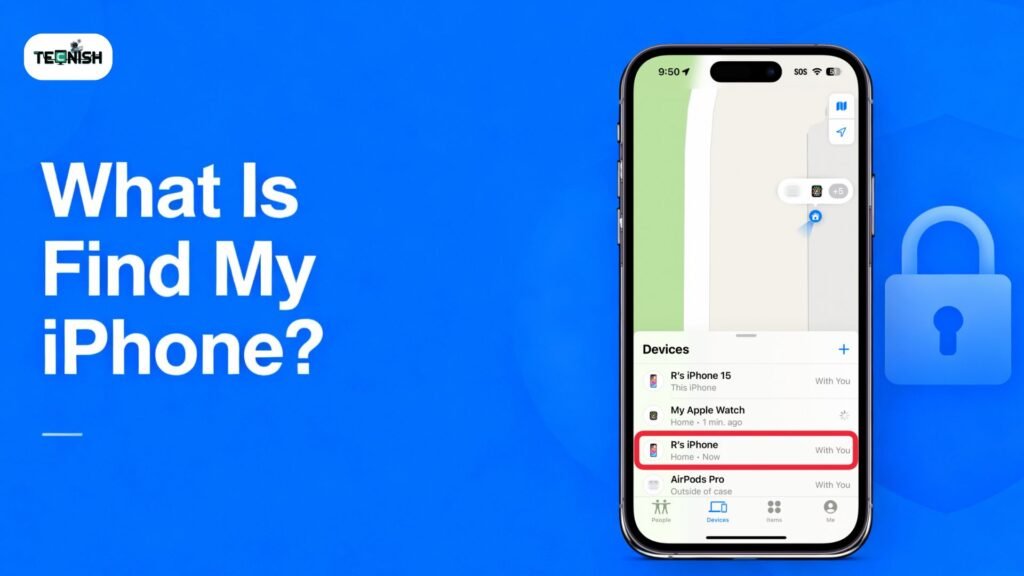
Short Explanation
Find My iPhone is like a tiny superhero protecting your device. It helps you track your phone on a map using the built-in iPhone tracking feature, and it keeps your data safe using Apple’s powerful iCloud security tools. Everything is connected to your Apple ID settings, which is why no one else can turn it off without your password. Apple created this tool to stop phone theft, and it actually worked many big cities saw a big drop in stolen iPhones after this feature came out. If you enjoy staying updated about Apple’s future devices, you might like reading a fun comparison article on iPhone 16 vs. iPhone 17 differences and features on Tecnish a great way to see how technology keeps improving.
Why You Might Need to Turn It Off
Even though Find My iPhone is super helpful, there are times when turning it off is necessary. For example, if you are selling your device, you must turn off Find My iPhone before selling so the new owner can set it up easily. If you’re visiting a repair shop, they may ask you to turn off Find My iPhone for repair, because they can’t open or test the phone while it’s locked to your Apple ID. There are also moments when you run into activation lock issues, and disabling the feature is part of the solution. And if you enjoy news about new mobile gadgets and updates, the Mobile Gadgets category shares helpful and quick stories about phones, accessories, and Apple updates that might help you stay informed.
How to Turn Off Find My iPhone (From the iPhone Itself)
Step-by-Step Method
Now that you understand what the feature does, let’s learn how to turn off find my iPhone right from your device. This is the most common method people use because it’s quick, simple, and safe. Just follow these easy steps:
- Open the Settings app.
- Tap your name at the very top to open your Apple ID settings.
- Choose Find My.
- Tap Find My iPhone.
- Switch the toggle OFF.
- Enter your Apple ID password.
- Wait a few seconds and you’re done.
Once you turn off Find My iPhone, your device is no longer locked to your Apple ID. This is super important when selling your phone, fixing activation problems, or preparing your device for reset. A lot of people do this right before upgrading to a new Apple model, especially when comparing older devices with the fresh ones the kind of comparisons found in Tecnish’s detailed tech blogs, which often reviews how new phones stack up against older ones in easy-to-read breakdowns.
Troubleshooting if You Don’t See the Option
Sometimes the option to disable the feature doesn’t appear, and that can be confusing. But don’t worry it usually happens for simple reasons:
- Your phone might need a software update
- The screen may be freezing
- Your iCloud has restrictions on
- Your internet connection is weak
- Your phone is stuck because Find My iPhone won’t turn off
With the help of Airdroid latest Article you can Fix the issues easily.
A quick restart or update usually fixes the issue. If not, check your iCloud settings again or try logging out and back into your account. When big Apple updates roll out often reported in the Tech News these settings sometimes change location or wording, which can make the option harder to spot until you update your iOS.
How to Turn Off Find My iPhone Remotely (Without the Device)
Using iCloud.com
If you don’t have your phone with you, don’t panic. You can still disable Find My iPhone remotely using your computer. This method is super helpful if your phone is broken, lost, or no longer turning on. Just follow these steps:
- Visit iCloud.com
- Sign in with your Apple ID
- Click Find Devices
- Choose the iPhone you want to remove
- Select Erase iPhone (only if needed)
- Click Remove from Account
This method is also used when you want to turn off Find My iPhone from iCloud without touching the phone physically. Many people do this right after switching to a new iPhone and wanting to clean up old devices from their account. If you love staying updated with future iPhone models, the article on iPhone 18 release date and features on Tecnish gives a fun look at what’s expected next.
Using Another Apple Device
If you own another Apple device, like an iPad or a second iPhone, the process is even easier. All you need is the Find My app. Just open it, pick your device, and follow the removal steps. This is handy when you’re away from home or dealing with a broken phone. These kinds of small but helpful Apple tips are the reason many readers enjoy browsing the mobile gadgets, which share similar tricks and guides for everyday users.
How to Turn Off Find My iPhone Without Apple ID Password
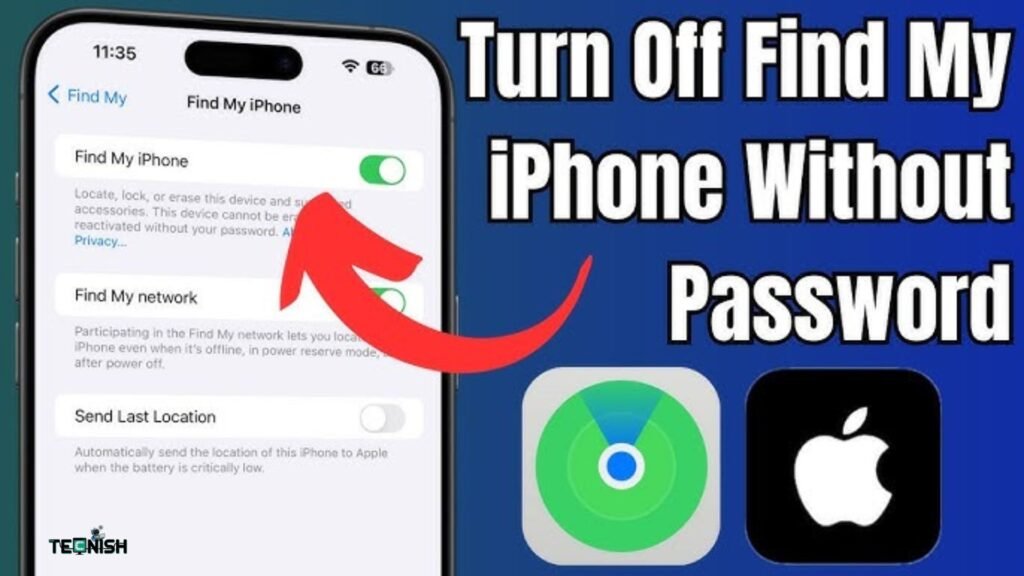
Can It Be Done?
Many people search for how to turn off find my iPhone without a password, but the truth is: Apple designed the system so it can’t be done. This is what keeps your phone safe from thieves. The feature cannot be turned off without entering the correct password and that’s a good thing.
What to Do If You Forgot Your Password
If you accidentally forgot Apple ID password, don’t worry! You can reset it:
- With your phone number
- Using your email
- Through a trusted Apple device
- Or by answering your Apple ID security questions
Once your password is reset, you can return to the settings and turn the feature off normally. Apple protects devices very strictly, and even experts discussing leaks and roadmaps like those featured in the Apple 2026 product roadmap analysis on Tecnish often highlight how strong Apple’s security system continues to be every year.
How to Turn Off Activation Lock
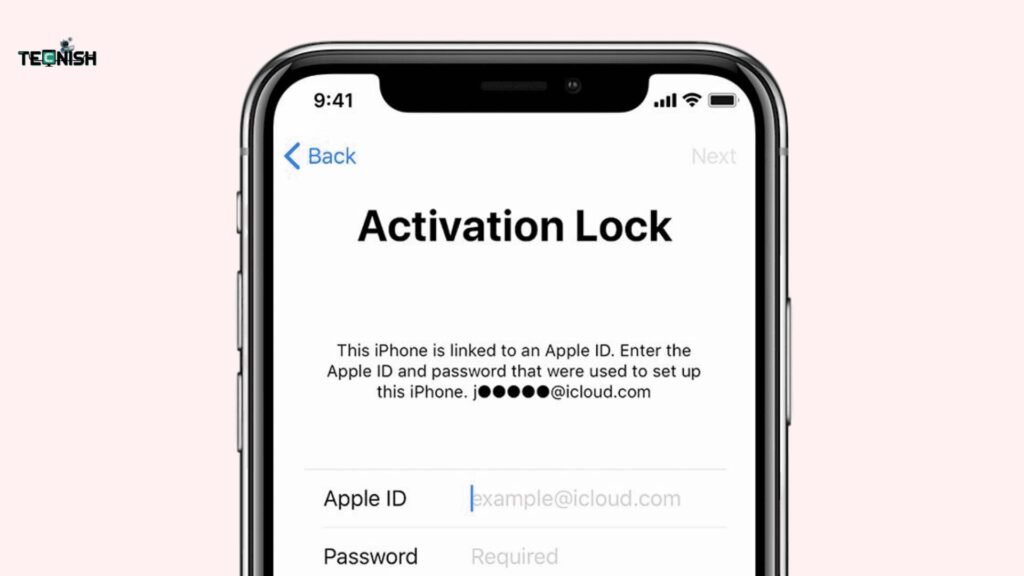
What Is Activation Lock?
Activation Lock is a built-in security shield that turns on automatically when Find My iPhone is enabled. It connects your phone to your Apple ID so nobody else can use it without your permission.
When It Blocks You
Sometimes Activation Lock stops you from resetting or setting up your phone, especially when you forget your password, buy a used phone still tied to someone else’s account, or run into activation lock issues after a factory reset.
How to Remove It Safely
To remove Find My iPhone activation lock, you must use your original Apple ID and password. If you can’t remember them, you can request help from Apple Support but you must prove that the phone is yours.
Many users come across Activation Lock when switching phones after reading about new device updates like the detailed comparisons found in the iPhone 16 vs. iPhone 17 features guide on Tecnish, which helps people decide whether it’s time to upgrade.
Common Problems & Quick Fixes
“Find My iPhone Won’t Turn Off”
Sometimes you may try to follow the steps for how to turn off find my iPhone, but the phone simply refuses. This can be really frustrating, especially when you’re in a hurry. But don’t worry it usually happens for simple reasons. Sometimes your internet connection is unstable, and the phone can’t reach Apple’s servers. Other times, your device may be stuck due to a system glitch, or your iCloud session might have expired.
Restarting your iPhone often solves the problem. Signing out of iCloud and signing back in can help too. Make sure your software is up to date because older iOS versions sometimes have bugs. When Apple releases big software updates often discussed in the Tech News section features like Find My iPhone usually get improvements or bug fixes. If nothing works, connect your device to Wi-Fi, wait a few minutes, and try again.
Two-Factor Authentication Issues
Two-factor authentication can sometimes slow you down. Maybe you’re not getting the verification code, or the code is going to another device. This can stop you from entering your password when trying to disable Find My iPhone.
The best fix is to check your trusted devices list and make sure your phone number and email are correct. If you don’t see your number, you can update it through your Apple ID settings. Restarting your device might help too. A stable network connection makes a big difference because the code needs to sync through Apple’s servers.
iCloud Not Responding Fixes
Sometimes iCloud just doesn’t respond. This usually happens because of a slow connection, server overload, or incorrect login details. First, check your internet. If Safari or other apps won’t load, iCloud won’t load either. You can also try switching from Wi-Fi to mobile data. Signing out of iCloud and signing back in might fix the issue. If you enjoy simple troubleshooting guides like this, you may also find helpful tech fixes and tips inside the Tech blogs section, where many iPhone problems are explained in a very easy way.
Is It Safe to Turn Off Find My iPhone?
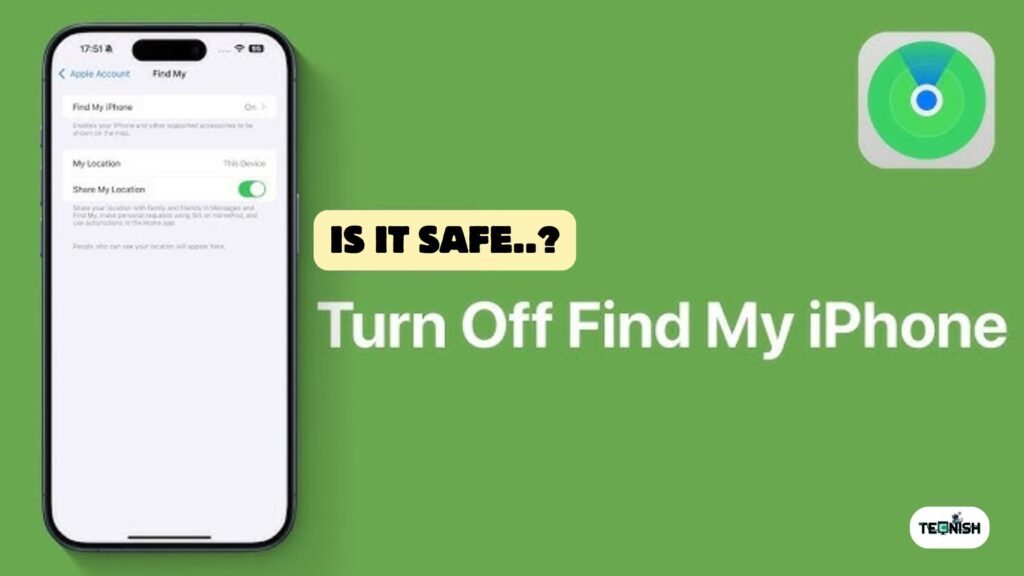
When It’s Safe
Turning the feature off is completely safe in certain situations. For example, if you’re selling your device, giving it away, or sending it for repairs, you should turn off Find My iPhone before selling or before handing it to a technician. It helps protect your privacy and ensures the new owner won’t be stuck at the activation screen. Apple uses this feature to stop thieves, but it also gives you control over your own phone when you want to remove it from your account.
When You Shouldn’t Disable It
There are times when you should NOT turn it off. For example, if your phone is lost or stolen, you should keep the feature turned on so you can track it. It’s also helpful for families with shared accounts because it allows them to find missing devices quickly. If you enjoy reading about new devices and safety improvements, the Mobile Gadgets section on Tecnish often discusses how Apple strengthens security features in every new generation of iPhones.
FAQs- (how to turn off find my iPhone)
1. Do I need Wi-Fi to turn off Find My iPhone?
Yes, you need an internet connection for the change to reach Apple’s servers.
2. Will turning it off erase my data?
No, disabling it does not delete anything from your phone.
3. Does turning it off stop location tracking completely?
Yes, once you disable it, your phone can’t be tracked from iCloud.
4. Can someone else disable it?
No, no one can disable Find My iPhone without your Apple ID password.
5. Can I remove my device from iCloud after turning it off?
Yes! Turning it off allows smooth iCloud device removal.
Conclusion
Learning how to turn off find my iPhone doesn’t have to be confusing. With the steps in this guide, you can easily disable the feature whether you have your device with you or not. Just remember to keep this feature turned on for everyday safety, especially if your phone ever gets lost. But when you’re selling your iPhone, repairing it, or resetting it, turning off the feature is the right thing to do.
If you love simple tech tips and friendly tutorials like this, the Tecnish website is full of helpful guides that make technology easy for everyone.
If find how to turn off find my iPhone article insightful then do not leave a comment. Follow Tecnish for amazing Tech Blogs and News.